FOR INSTRUCTORS
Who this is for: instructors.
Yes. You set and change every due date yourself, on the Plan tab of your Kit.
- Set the due dates for the whole term at once. Pick your start week, your time zone, and the weekday(s) and time each kind of work is due (lessons, homework, and self-quizzes), then click Generate plan. Learnvia takes the content you organized in the Configure tab and distributes it across every week of the term. You can set up to five due dates a week for each kind of work, for example lessons due Monday and Wednesday and homework due Friday.
- Change any single due date. Click a date to change it to account for a holiday, an exam week, or a schedule change. You can do this even after the date has passed. Learnvia recalculates scores, so work students finished before the new date now counts in the gradebook.
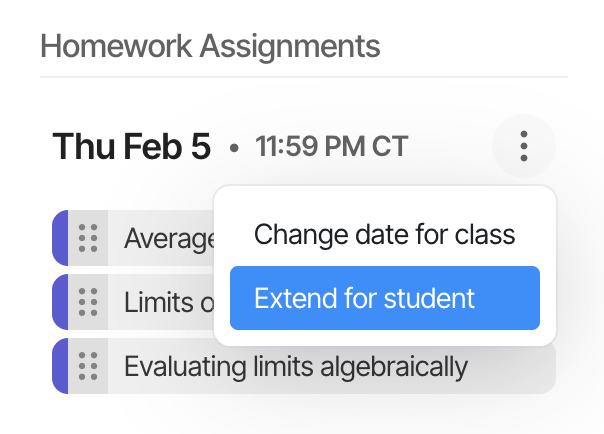
- Give one student more time. On the Plan tab, open the week, click the three dots next to the assignment, and choose Extend for student. The due date changes for that student only; every other student keeps the original date.
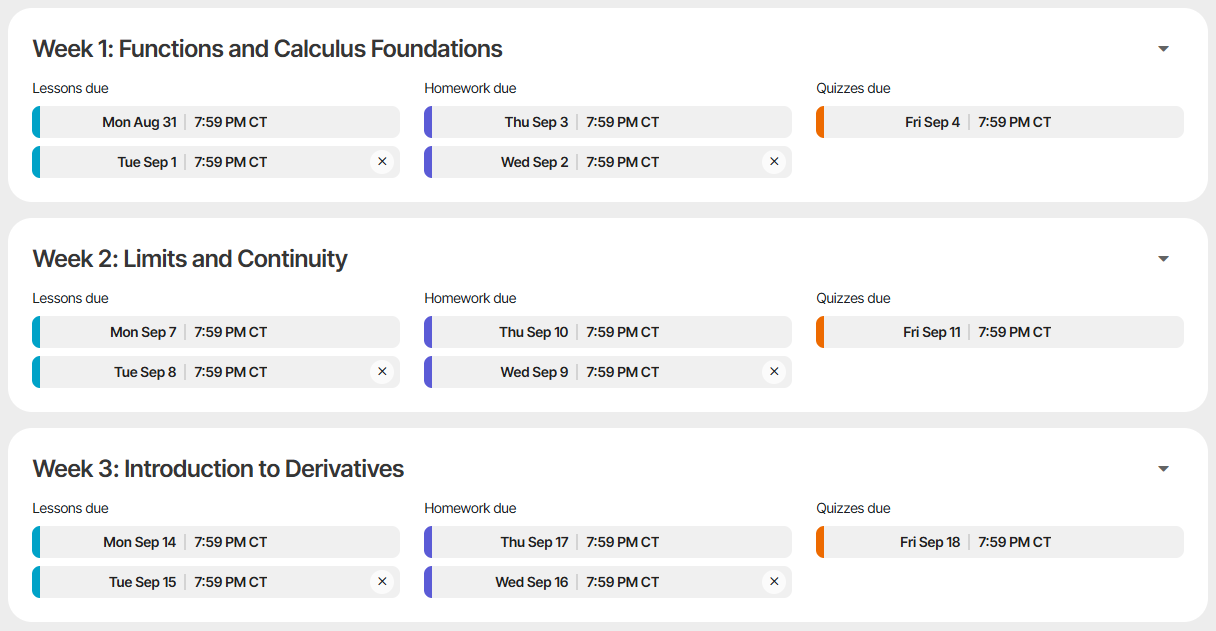
When you generate or change your plan, Learnvia confirms with the message Course plan generated successfully (or Course plan updated successfully). Any grades affected by the change update in the background, which can take a while in a large course.
One caution: once a plan exists, the button at the bottom of the Plan page reads Regenerate plan. Clicking it resets every date according to the new overall schedule and replaces any dates you previously changed manually. Learnvia will ask you to confirm before resetting all due dates. To adjust only a few dates, click them one at a time.
Step-by-step guides: Plan and Extending deadlines.
Was this article helpful?
That’s Great!
Thank you for your feedback
Sorry! We couldn't be helpful
Thank you for your feedback
Feedback sent
We appreciate your effort and will try to fix the article