FOR INSTRUCTORS
Who this is for: instructors.
Students don't need a separate Learnvia account or password if your institution has connected Learnvia to its LMS through LTI. They open your course in your LMS (Canvas, Blackboard Ultra, or D2L Brightspace) and click the Learnvia link. Learnvia opens to their course home.
If your course is set up on Learnvia's Canvas instance (learnvia.instructure.com) instead of your school's LMS, students create a free Canvas account using the join link you share.
Inside your LMS course, students reach Learnvia through a single link. In the Canvas example below, the link is named Access Learnvia Here and sits in a module named Learnvia. The names in your course may differ, depending on how the link was added.

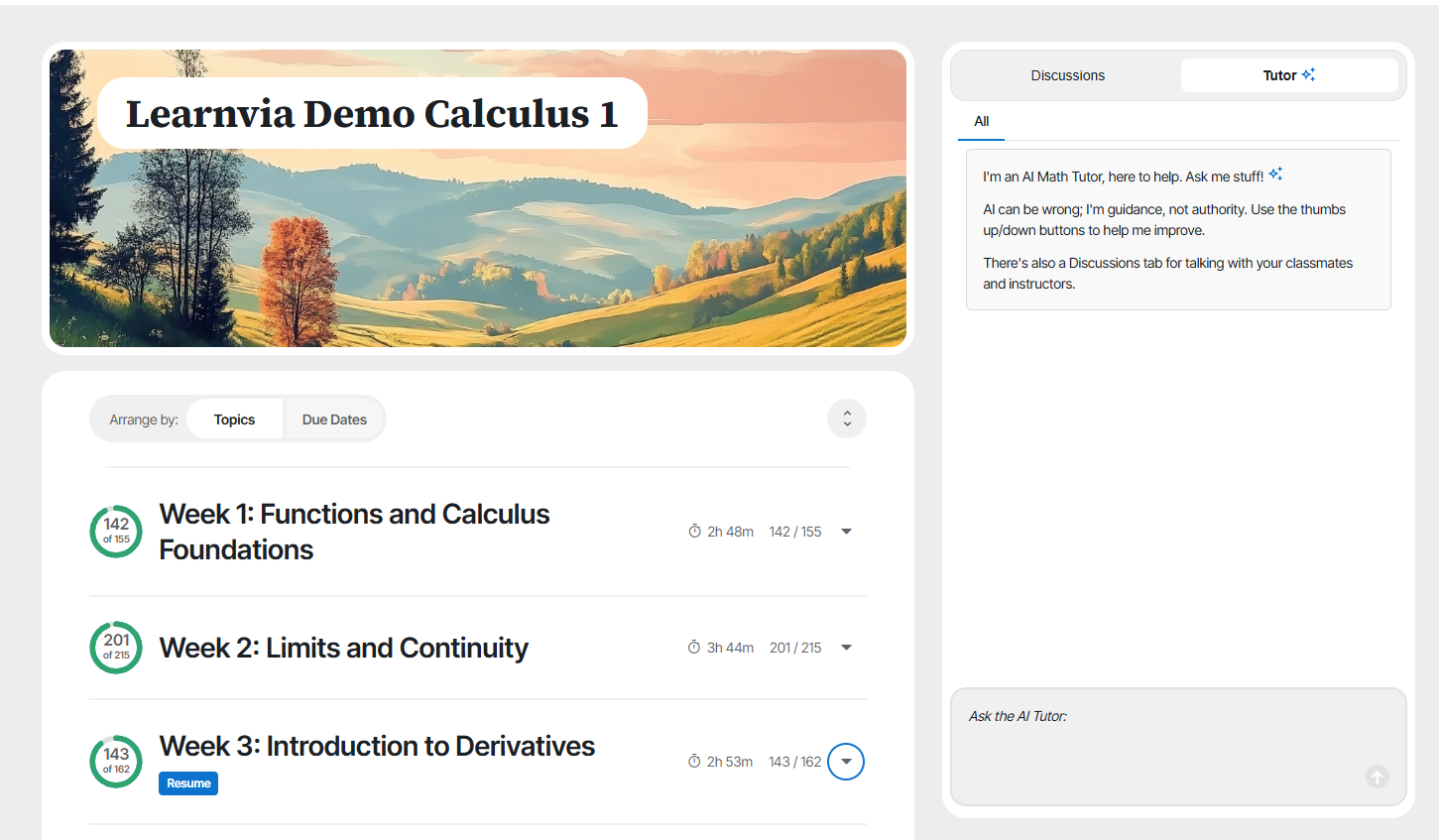
Here is what students see on their course home:
- A table of contents. The Learnvia modules appear in the order you set using the Configure and Plan tabs. Many instructors rename each chapter as a week, so students see Week 1, Week 2, and so on. Modules you removed in the Configure tab don't appear.
- Their place, saved. The table of contents opens already scrolled to where the student left off, and a Resume button under that week opens the task they were last working on.
- Progress on everything. Each chapter, module, and task shows how much is done and about how long it is expected to take. For example, 143 / 162 next to a week means 143 of that week's 162 activities are finished. An activity is one step inside a lesson, homework, or self-quiz, usually a single question.
- Two ways to arrange the work. Arrange by Topics shows the material in order by week or chapter. Arrange by Due Dates groups each week's work by when it is due, so students can see at a glance what they need to finish next.
- Short tasks. Every content module has lessons, then homework, then a self-quiz. Each of these tasks is expected to take about 10 to 15 minutes. The larger figures shown next to a week, such as 2h 48m and 142 / 155, are totals for all of that week's tasks.
- Help built in. An AI Tutor and a class Discussion board appear in a panel to the right of the content on every page.
Each lesson and homework question a student finishes counts toward their score right away. A self-quiz counts when the student clicks Submit. Once you connect your LMS gradebook, those scores appear there too.
More detail, written for students: Start Here: Getting Started with Learnvia, Learnvia chapters, modules, tasks, and activities, and Arrange by Topics vs Arrange by Due Dates.
Was this article helpful?
That’s Great!
Thank you for your feedback
Sorry! We couldn't be helpful
Thank you for your feedback
Feedback sent
We appreciate your effort and will try to fix the article