FOR INSTRUCTORS
Who this is for: instructors.
Due dates appear in the course's table of contents, so students don't need to check a separate calendar page. Where students see them depends on how they arrange the table of contents.
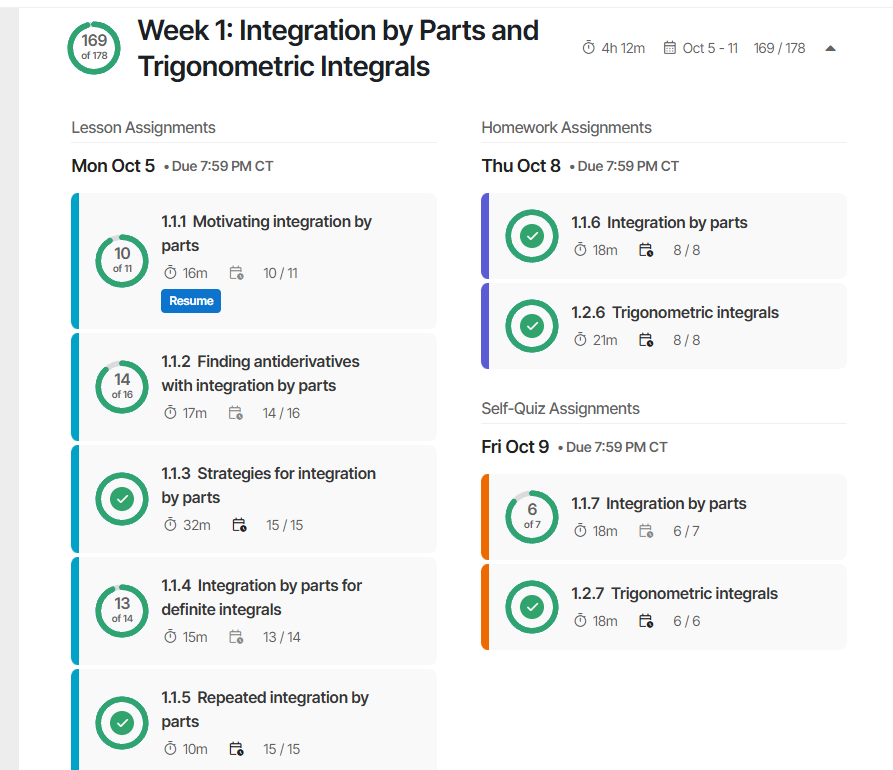
- In Topics view. Each lesson, homework, and self-quiz shows its due date and time once the student expands its week and module.
- In Due Dates view. This view groups each week's work by due date, for example lessons due Monday, lessons due Wednesday, and homework due Thursday. Students can work straight down the list of what is due next.
- The same pattern every week. Most instructors set different days of the week for lesson, homework, and self-quiz due dates, so students learn the rhythm quickly. If you move a date for a holiday, students see the change in Due Dates view right away.
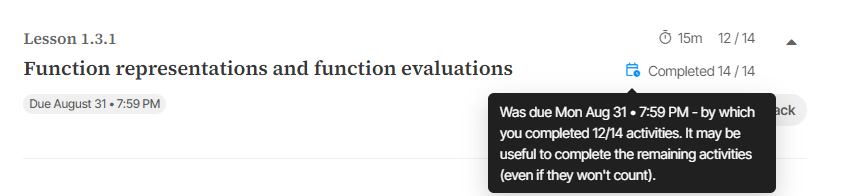
- After a due date. Learnvia doesn't lock students out. A calendar icon shows that the due date has passed, and the task shows two numbers: the score earned by the due date, which is what goes to the gradebook, and everything completed so far. Students can keep working, and if you extend the due date, their later work counts.
Students never need to submit a lesson or a homework. Each question they finish counts right away, so forgetting to click a submit button can't cost them credit.
Self-quizzes work differently. A self-quiz is scored only when the student clicks Submit. Students earn credit for each question they attempt, right or wrong, see the solutions after they submit, and can retake the self-quiz as many times as they like.
Good to know: due dates live in Learnvia. The gradebook columns that Learnvia adds to your LMS don't carry due dates, so they won't appear in your LMS calendar or to-do list. Remind students to check Learnvia daily to keep track of what is due when.
More detail: Arrange by Topics vs Arrange by Due Dates and Tasks, and activity completion.
Was this article helpful?
That’s Great!
Thank you for your feedback
Sorry! We couldn't be helpful
Thank you for your feedback
Feedback sent
We appreciate your effort and will try to fix the article