Setting up the Learnvia Courseware App in Canvas
Install via App Center (newer Canvas versions)
Log in as a Canvas administrator.
Click Admin → select the target Canvas instance.
In the left-hand menu, click Apps → Manage → Install a New App.
Choose LTI Version 1.3.
Under Install Method, select JSON.
Paste the JSON below and click Next.
{
  "title": "Learnvia Courseware",
  "description": "Math Platform LTI Tool Link",
  "target_link_uri": "https://courseware.learnvia.org/api/lti/request",
  "oidc_initiation_url": "https://courseware.learnvia.org/api/lti/oidc",
  "public_jwk_url": "https://courseware.learnvia.org/api/.well-known/jwks.json",
  "custom_fields": {
    "item_id": "$Canvas.moduleItem.id",
    "base_url": "$Canvas.api.baseUrl",
    "sections": "$Canvas.course.sectionSisSourceIds",
    "course_id": "$Canvas.course.id"
  },
  "scopes": [
    "https://purl.imsglobal.org/spec/lti-ags/scope/lineitem",
    "https://purl.imsglobal.org/spec/lti-ags/scope/lineitem.readonly",
    "https://purl.imsglobal.org/spec/lti-ags/scope/result.readonly",
    "https://purl.imsglobal.org/spec/lti-ags/scope/score",
    "https://purl.imsglobal.org/spec/lti-nrps/scope/contextmembership.readonly",
    "https://canvas.instructure.com/lti/public_jwk/scope/update",
    "https://canvas.instructure.com/lti/account_lookup/scope/show",
    "https://canvas.instructure.com/lti-ags/progress/scope/show",
    "https://canvas.instructure.com/lti/page_content/show"
  ],
  "extensions": [
    {
      "domain": "courseware.learnvia.org",
      "privacy_level": "public",
      "platform": "canvas.instructure.com",
      "settings": {
        "platform": "canvas.instructure.com",
        "placements": [
          {
            "text": "Learnvia Courseware",
            "placement": "link_selection",
            "message_type": "LtiDeepLinkingRequest",
            "windowTarget": "_blank"
          }
        ]
      }
    }
  ]
}
Review populated data on each screen (Registration → Permissions → Data Sharing → Placements → Override URI → Nickname → Review). Click Next on each, then Install App on the final screen.
Return to Apps → Manage. Locate the new app and open its detail page.
Copy Client ID.
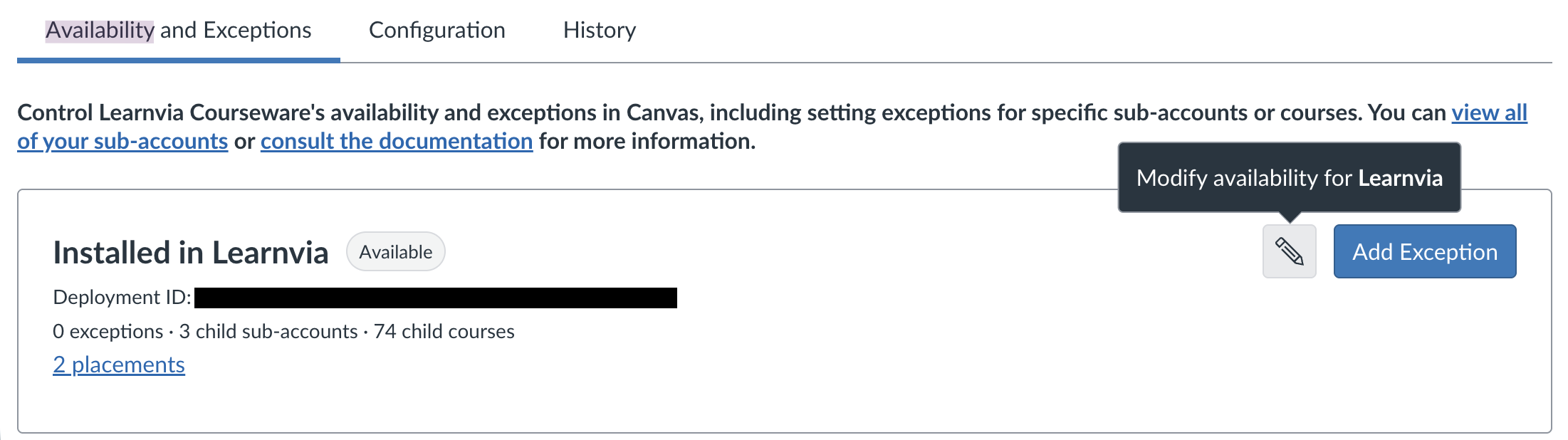
Click Availability & Exceptions. Copy Deployment ID.
Send the following information to Learnvia Support (support@learnvia.org).
Client ID
Deployment ID
Canvas URL (e.g., https://myschool.instructure.com)
In Availability & Exceptions, ensure the app is configured properly by either:
Disabling the app and adding exceptions to sub-accounts and/or courses.
Enabling availability by pressing the the pencil icon on toggling to enabled.
Using JSON Configuration and Developer Keys (for older Canvas versions)
Log in as a Canvas administrator.
Click Admin → target instance → Developer Keys.
Click + Developer Key → + LTI Key.
Choose Paste JSON and insert the JSON shown above.
Set Key Name to Learnvia Courseware. Supply Owner Email per institutional policy. Click Save.
Toggle the new key to ON in the Developer Key list.
Copy the Client ID from the Details column.
Navigate back to Admin → Settings → Apps → Manage → + App.
Set Configuration Type to By Client ID, paste the Client ID, and click Submit.
In View App Configurations, open the gear menu for the tool, select Deployment ID, and copy the ID.
Send the following information to Learnvia Support (support@learnvia.org).
Client ID
Deployment ID
Canvas URL (e.g., https://myschool.instructure.com)
Whether or not your Canvas instance is hosted by Instructure.
Was this article helpful?
That’s Great!
Thank you for your feedback
Sorry! We couldn't be helpful
Thank you for your feedback
Feedback sent
We appreciate your effort and will try to fix the article