After a Brightspace administrator has completed the initial setup and enabled a Quicklink, instructors will be able to add it to their course using the following instructions.
Within a Brightspace course, after adding a content item, a courseware link will be selectable from the list of existing activities. Select the Learnvia Courseware activity from the list.
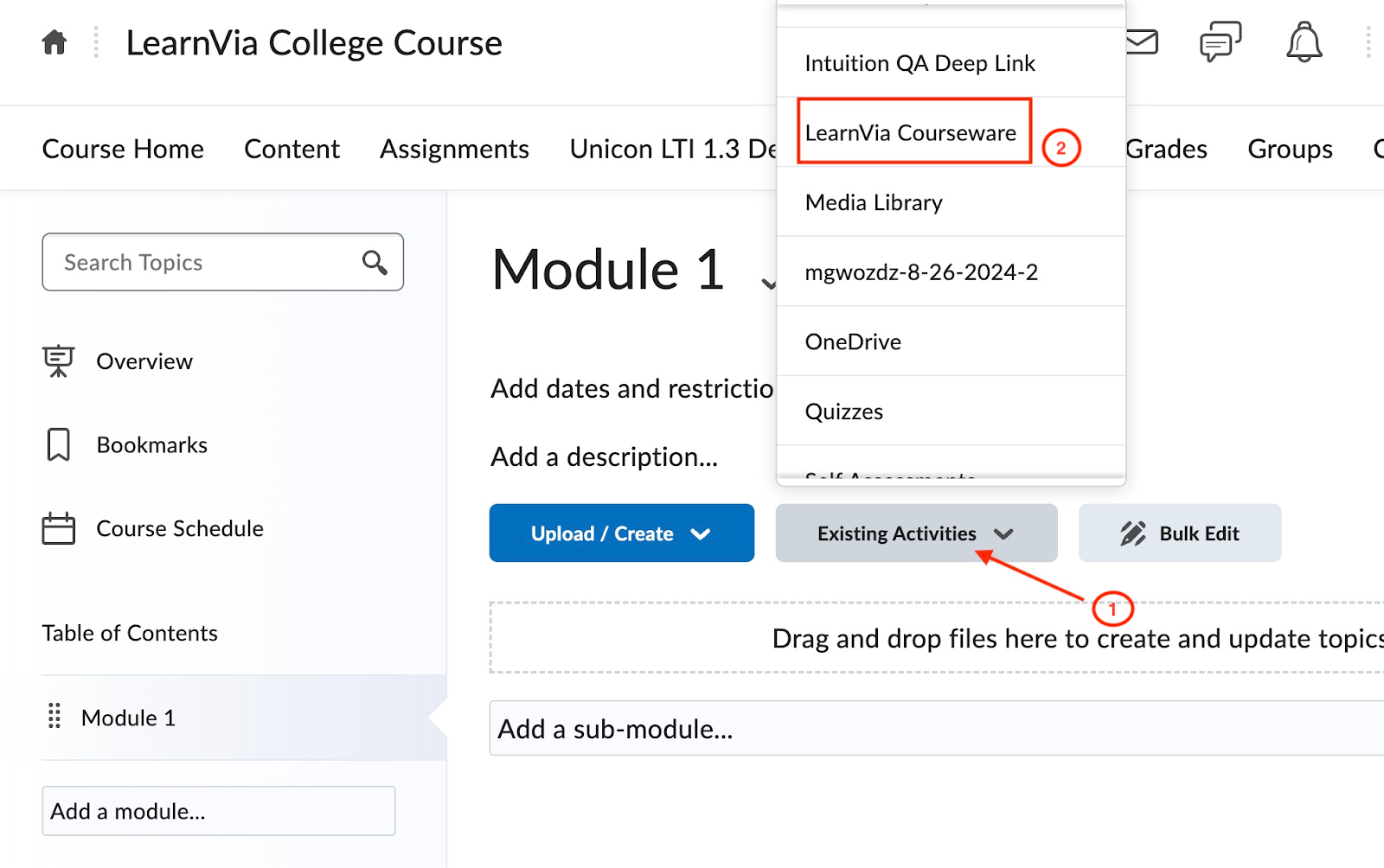
Once the activity has been added, the instructor will be prompted to create a Learnvia Courseware link!
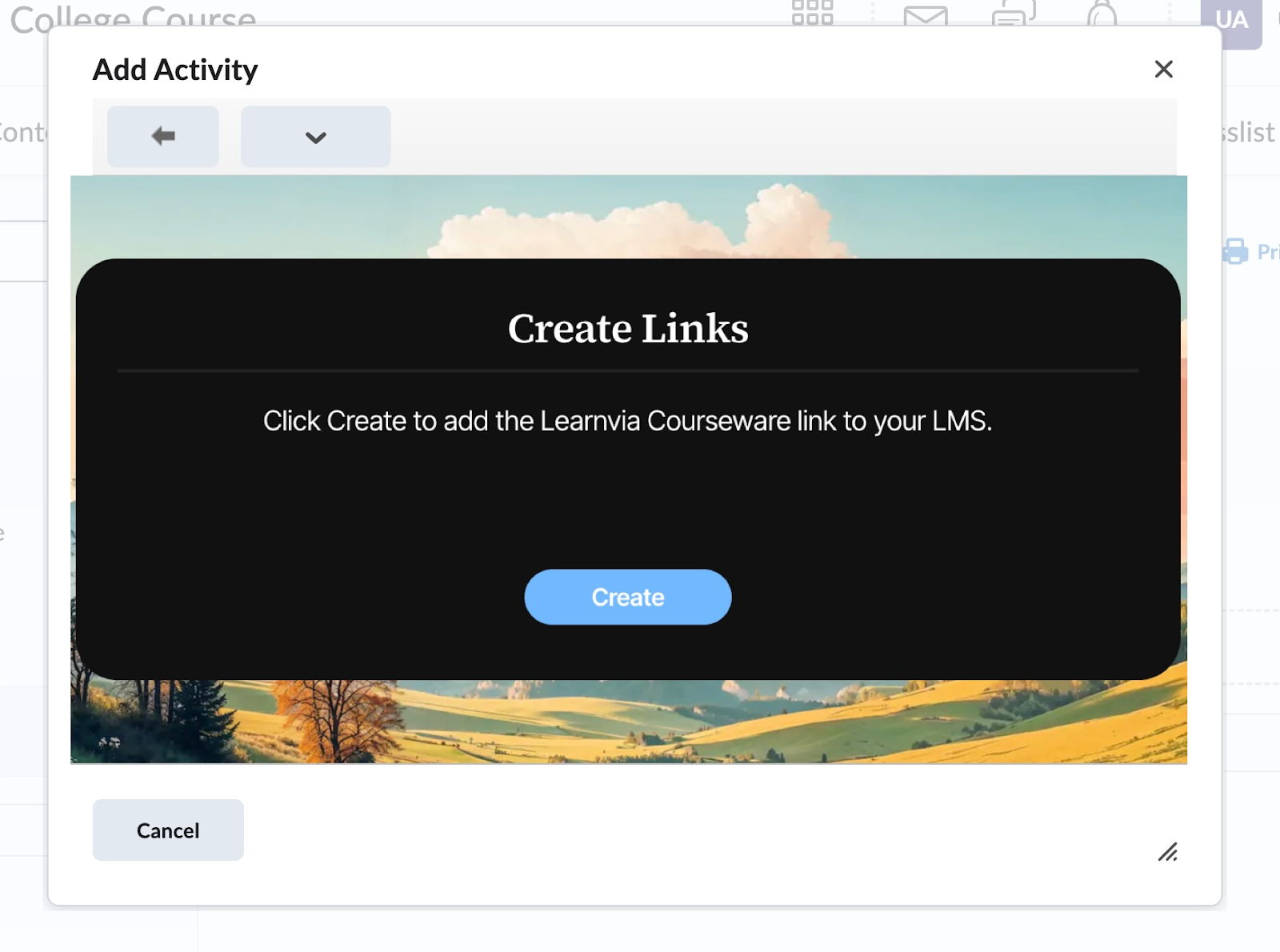
Click “Create” to continue with the Learnvia courseware setup.
Was this article helpful?
That’s Great!
Thank you for your feedback
Sorry! We couldn't be helpful
Thank you for your feedback
Feedback sent
We appreciate your effort and will try to fix the article