This guide outlines steps for transferring grades originating in the Learnvia courseware into your institution's Canvas course.
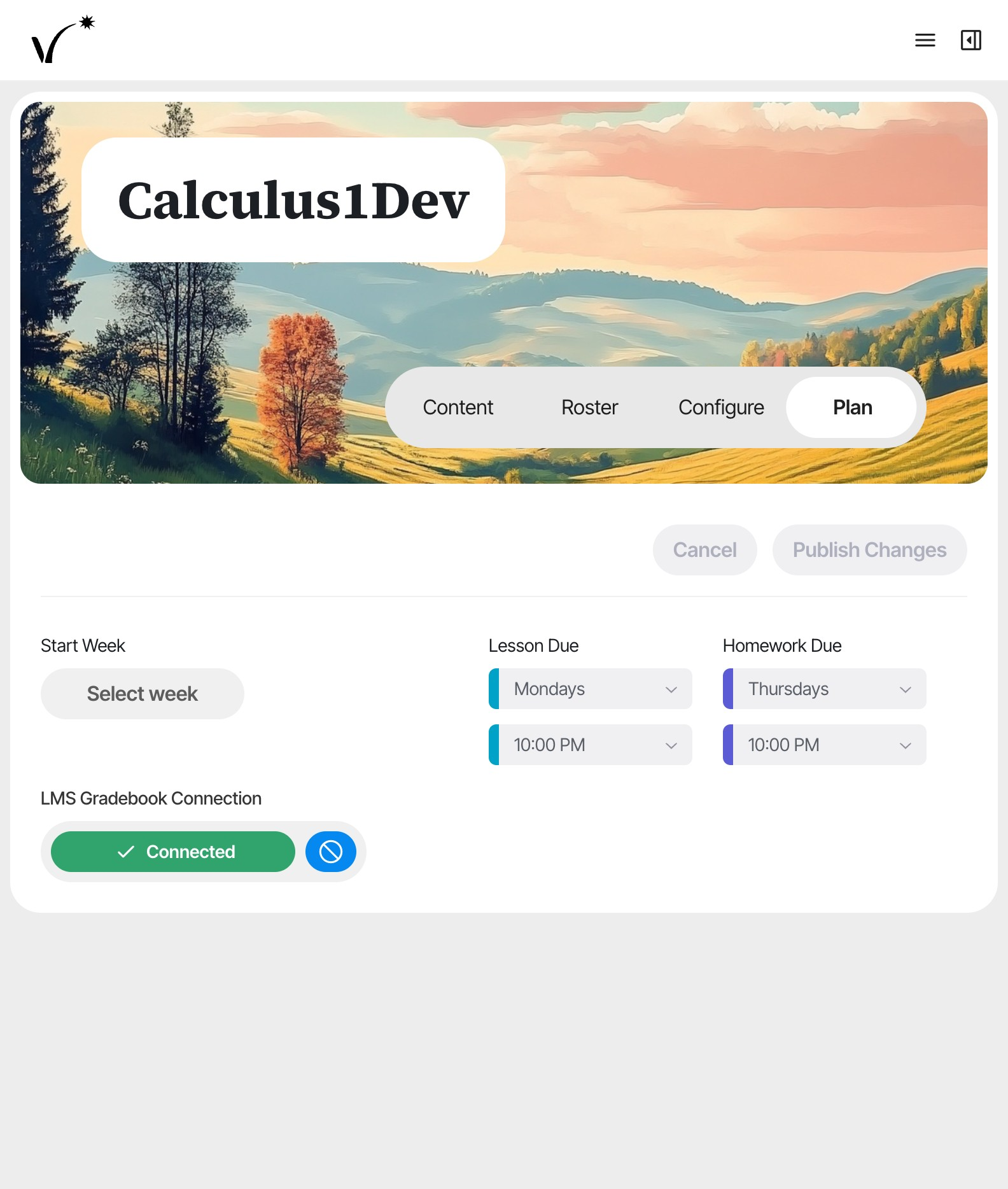
- From the "Plan" page, click the "Connect" button under "LMS Gradebook Connection" to connect the courseware with your Learnvia Canvas course Gradebook. Once connected, the button will turn green and read "Connected".
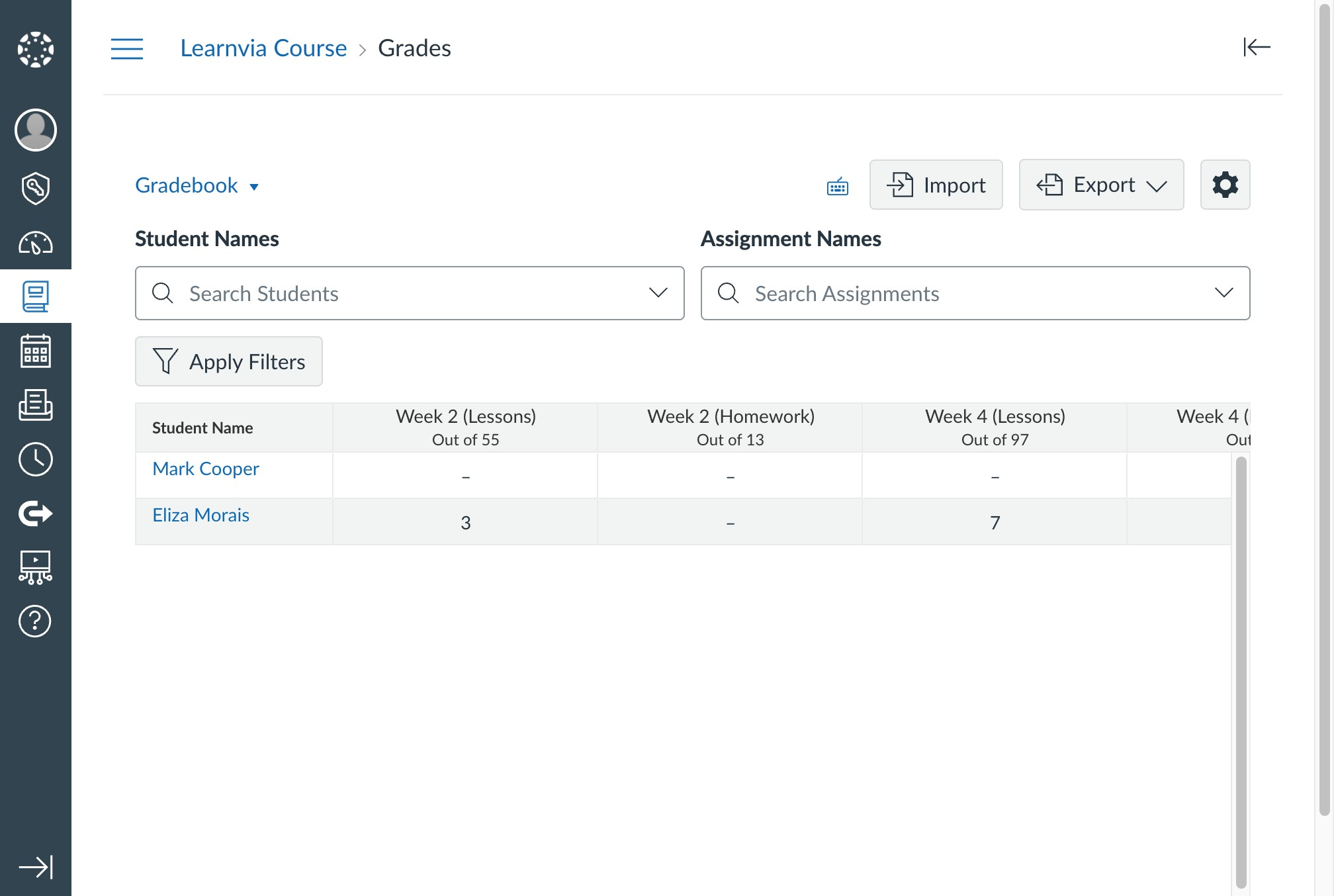
- In your Learnvia Canvas course, navigate to the Gradebook. Click the "Export" button.
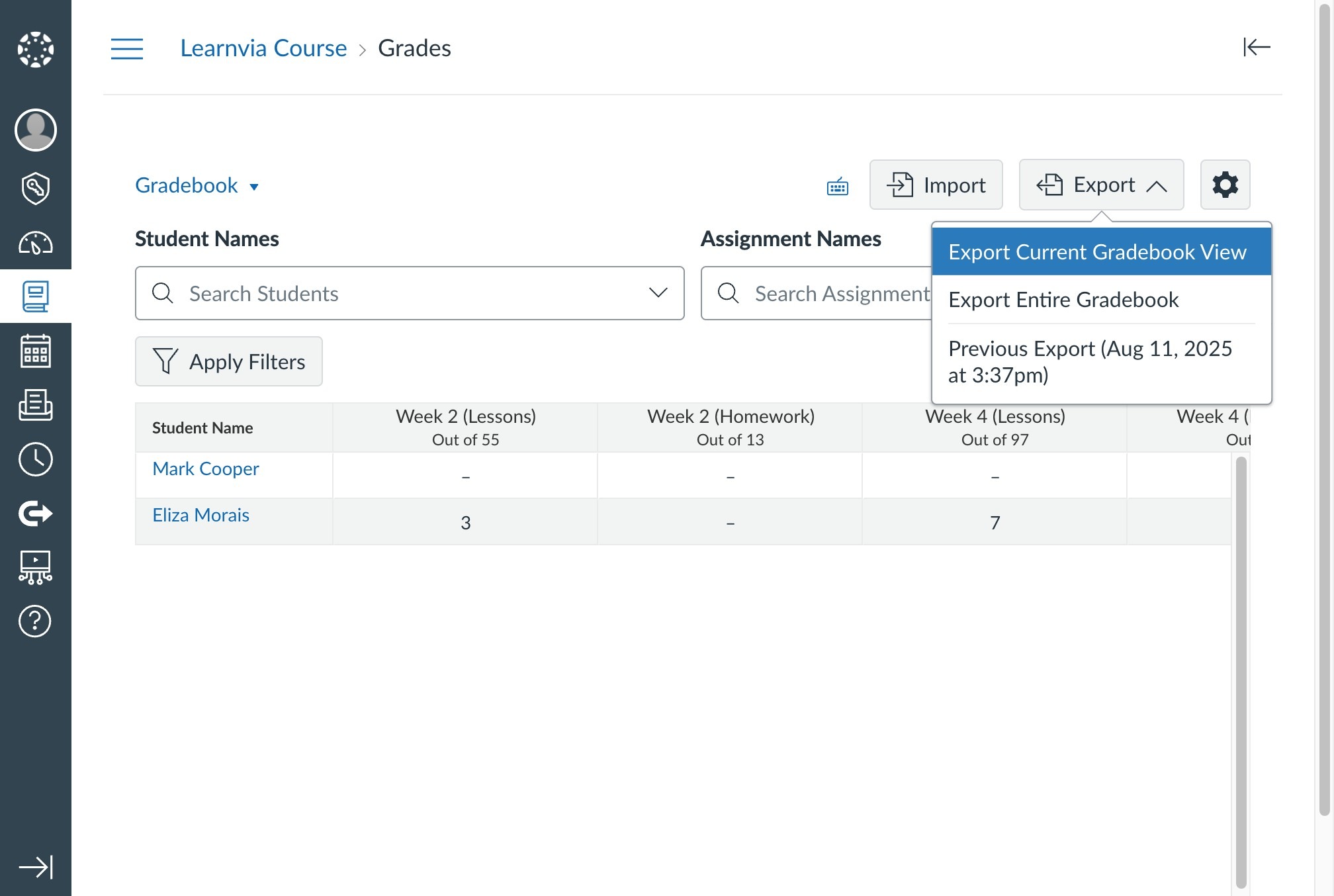
- Click"Export Entire Gradebook" in the dropdown. Then, save the CSV file to your device.
- You can process or modify your export in any way before uploading it. For example, you may merge/delete columns or rename fields if needed.
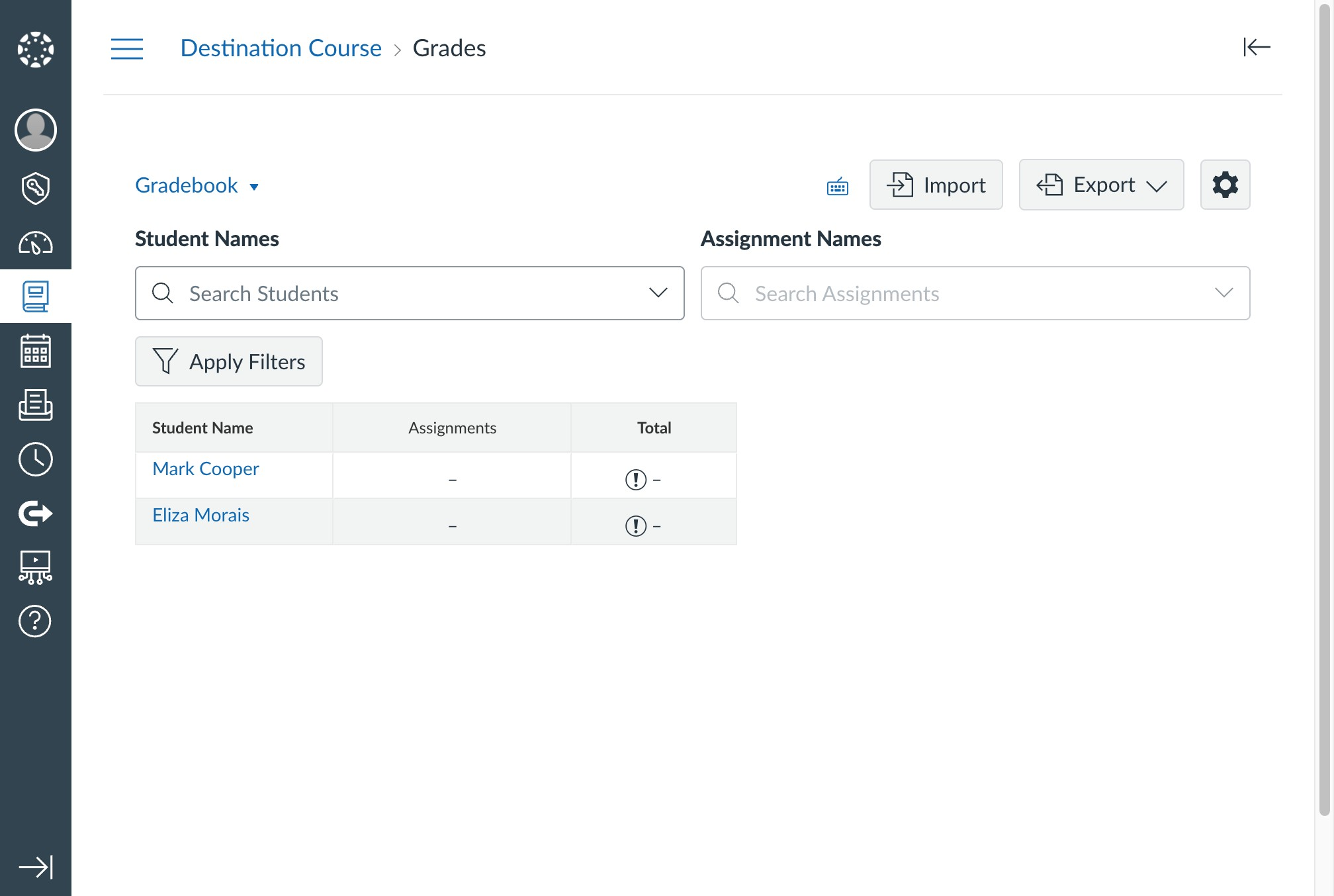
- Navigate to your institution's Canvas account, then to the Gradebook of your course. Click the "Import" button.
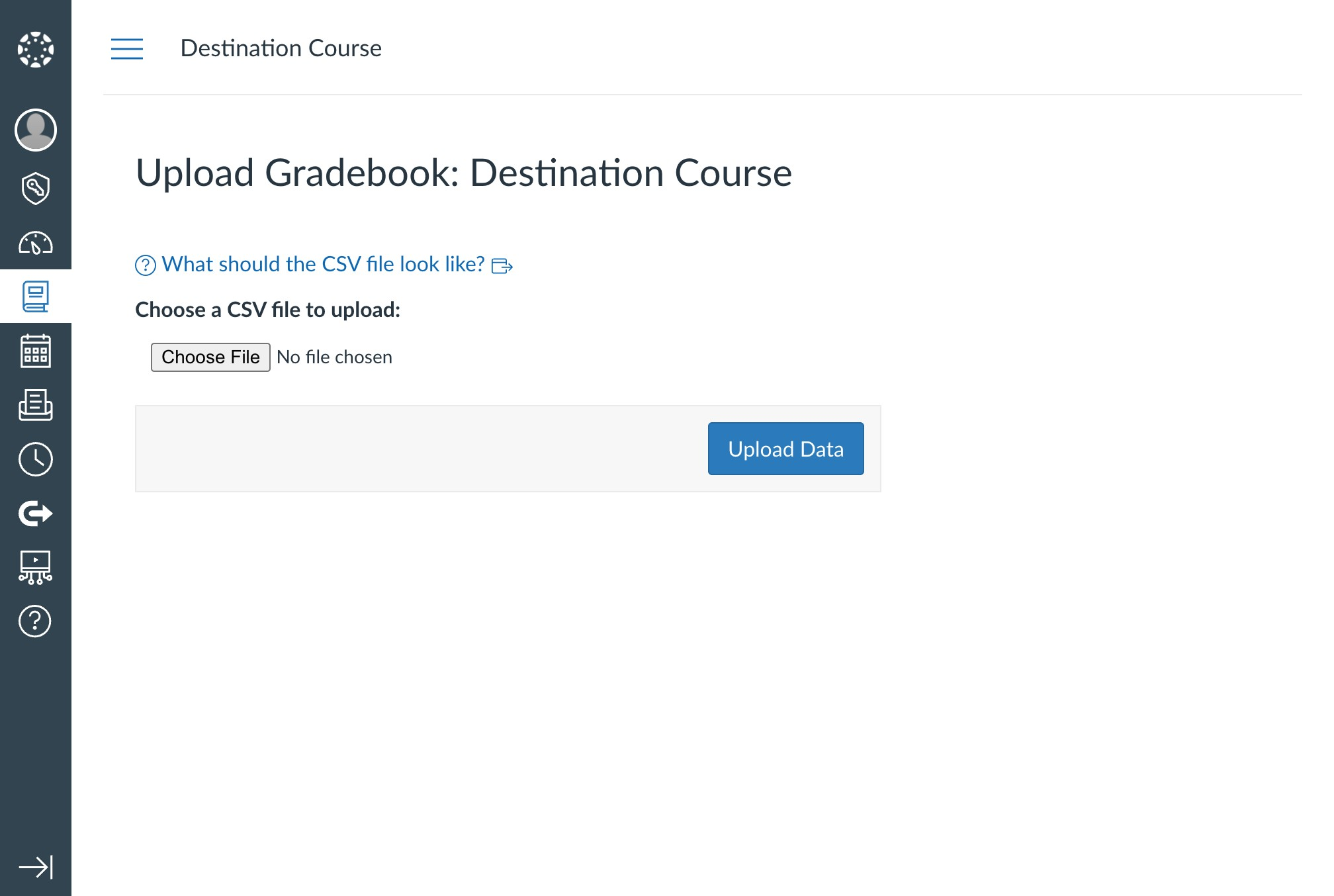
- Click the "Choose File" button and select the gradebook file that you saved. Then, click "Upload Data".
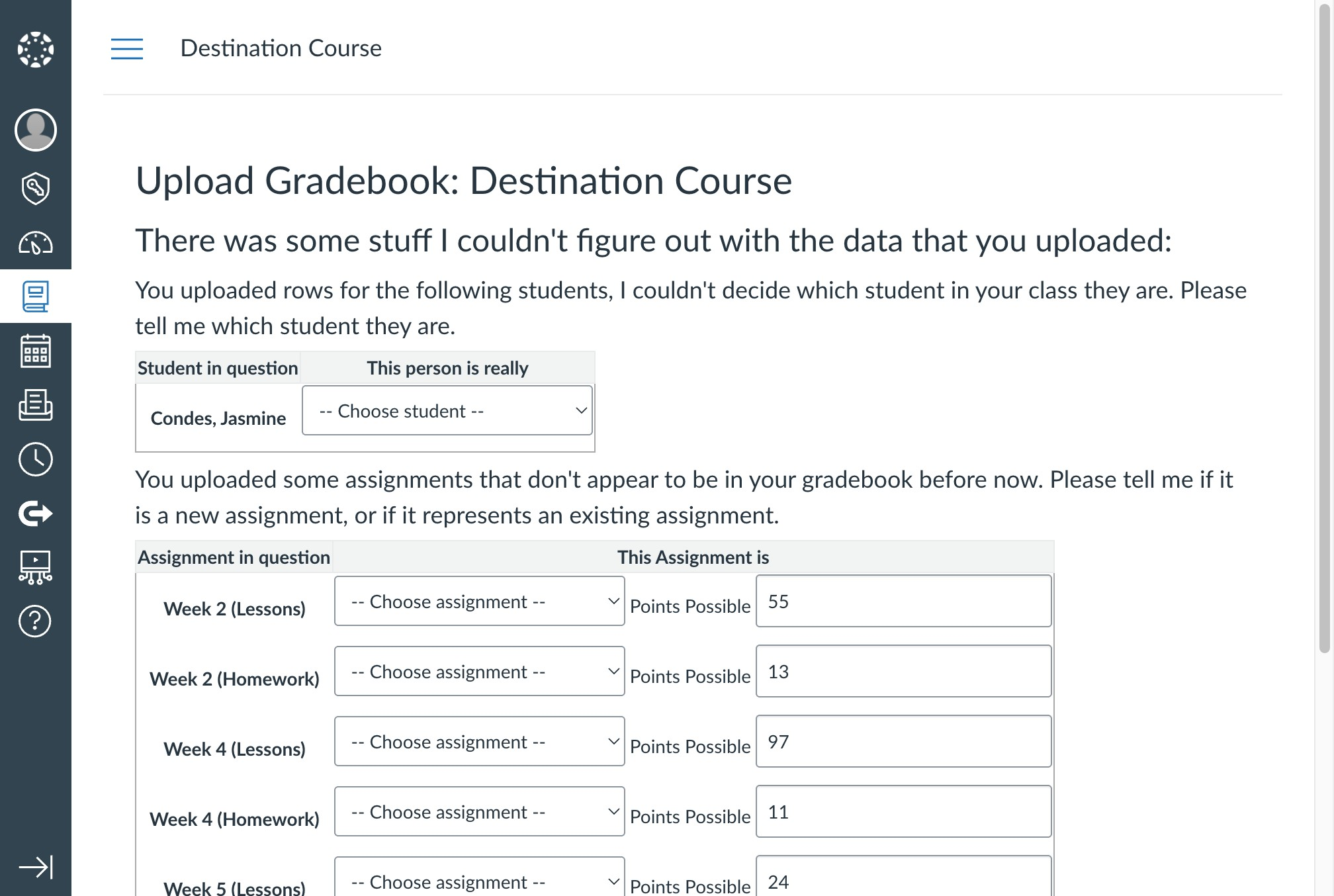
- If a student in the export file doesn't seem to match with any students in your institution Canvas course, select the dropdown next to their name. Either match them to the correct student, or tell Canvas to ignore them.
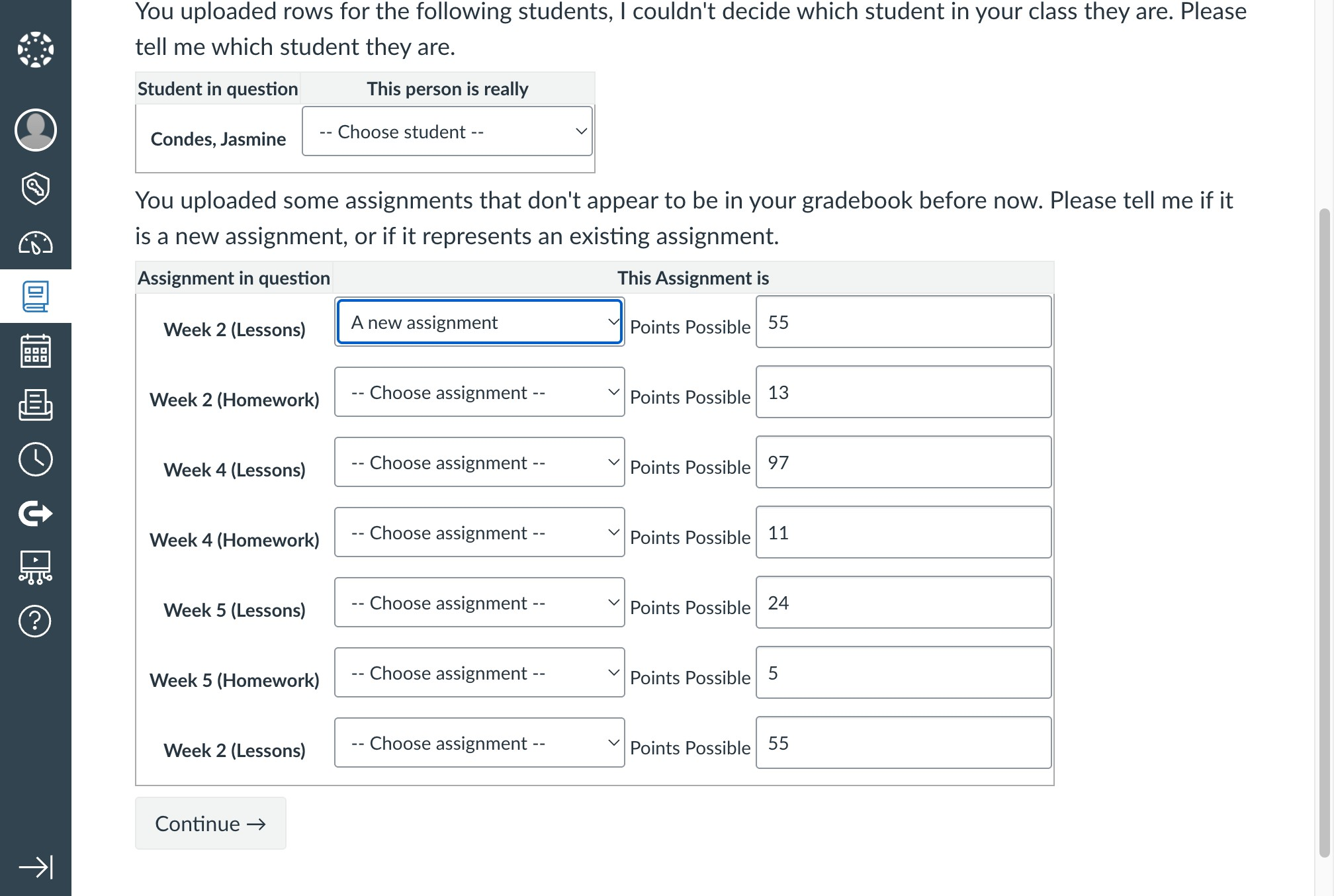
- The first time you import grades into your institution's Canvas course, none of the Learnvia assignments will exist. From the dropdown next to each listed assignment, select "A new assignment". Canvas will create these assignments automatically for you. When you are finished, click "Continue".
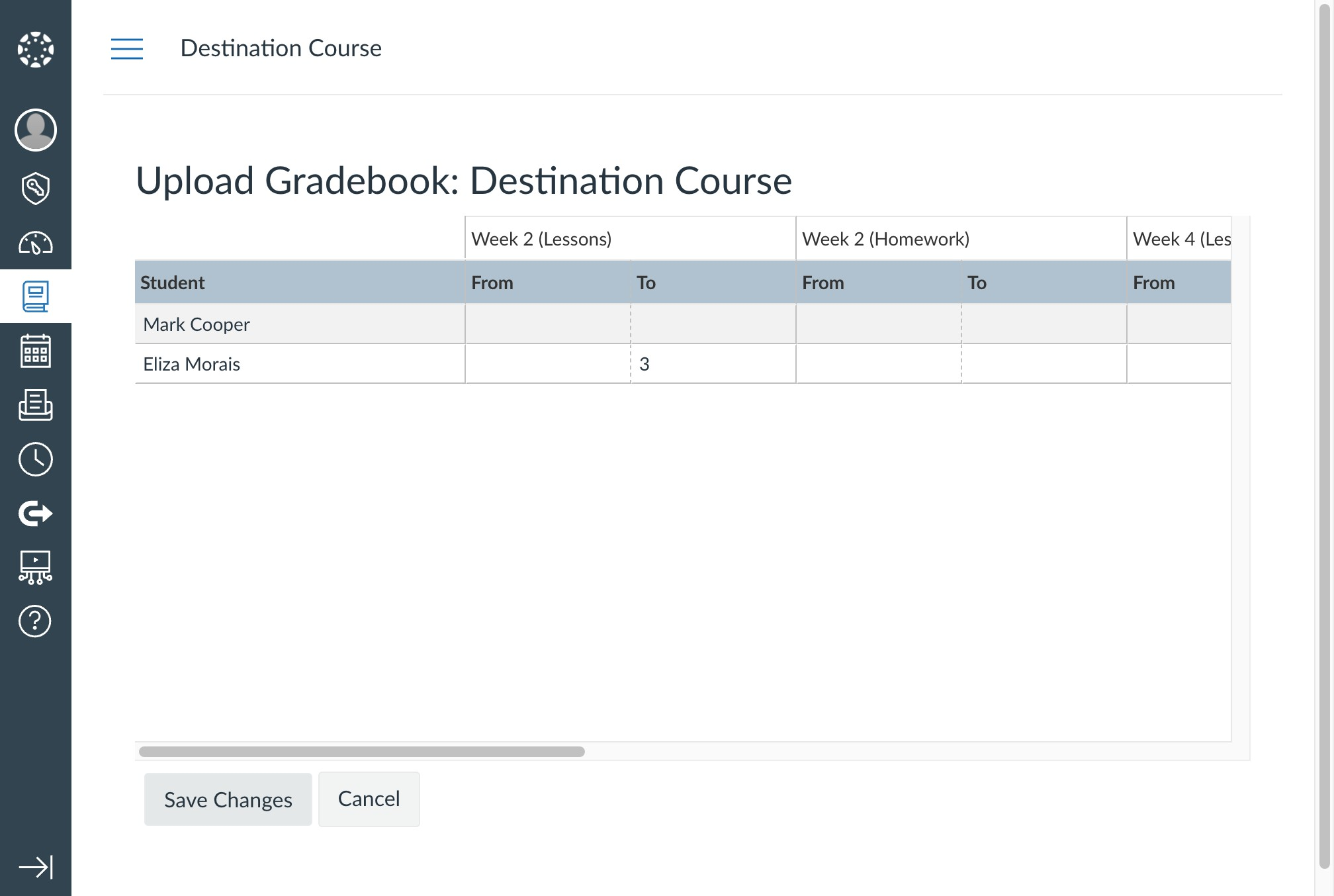
- The next page will show you what information will be imported into the Gradebook. Click "Save Changes".
Your Gradebook will now show all of the assignments and grades that you exported from your Learnvia Canvas course.
If you later need to export grades again, simply repeat this same process.
Was this article helpful?
That’s Great!
Thank you for your feedback
Sorry! We couldn't be helpful
Thank you for your feedback
Feedback sent
We appreciate your effort and will try to fix the article