Plan

Modified on Wed, 8 Jul at 10:00 AM

This guide outlines steps for managing course assignments. After configuring the course, set when lessons, homework, and quizzes will be due each week. Make sure to configure the course by choosing modules for each week in the Configure tab before setting assignments.


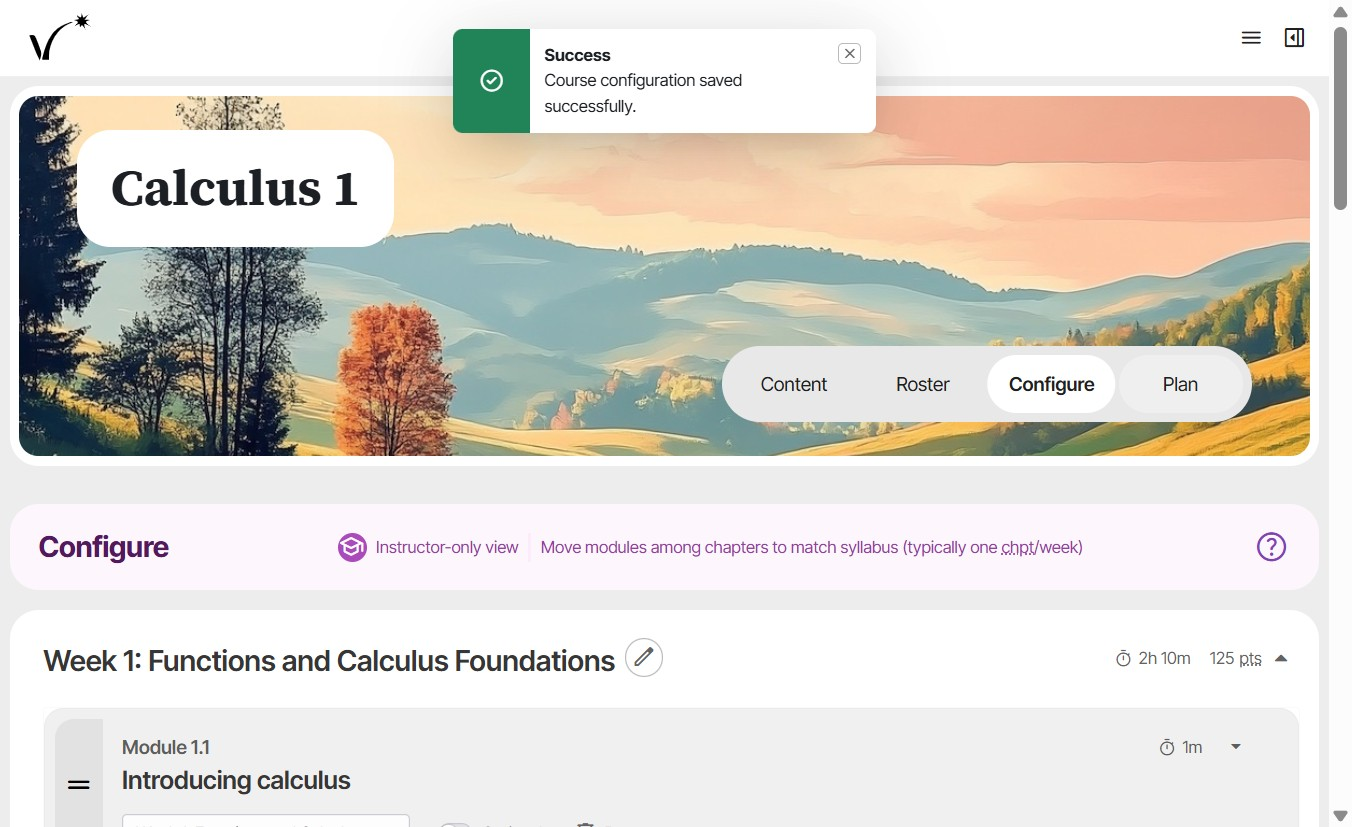
  1. Click Plan to manage assignments.Calculus 1 course page with the top navigation tabs Content, Roster, Configure, and Plan; Plan is the tab to click to manage assignment due dates.
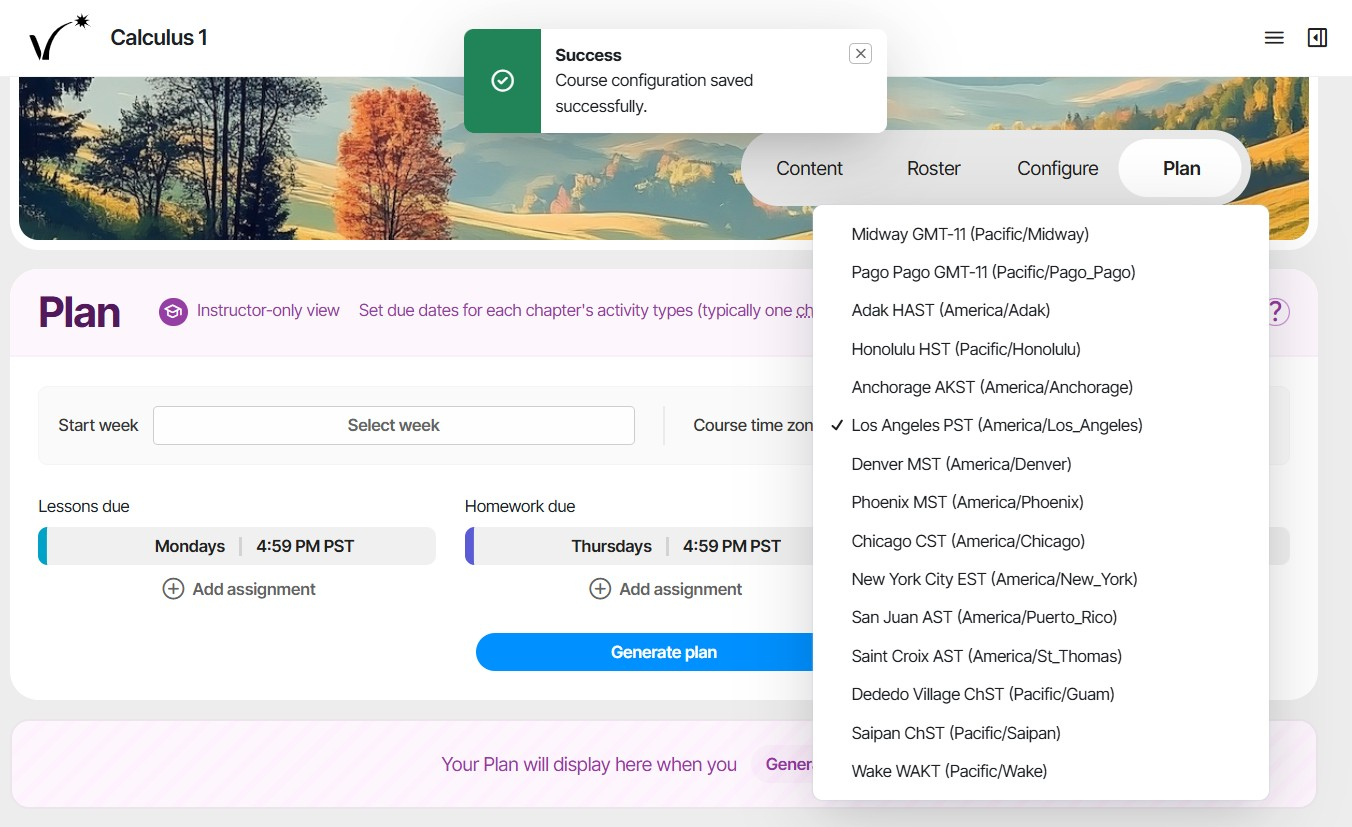
  2. Set the course time zone.Course time zone dropdown open on the Plan tab, listing time zones with Los Angeles PST checked as the selected course time zone.
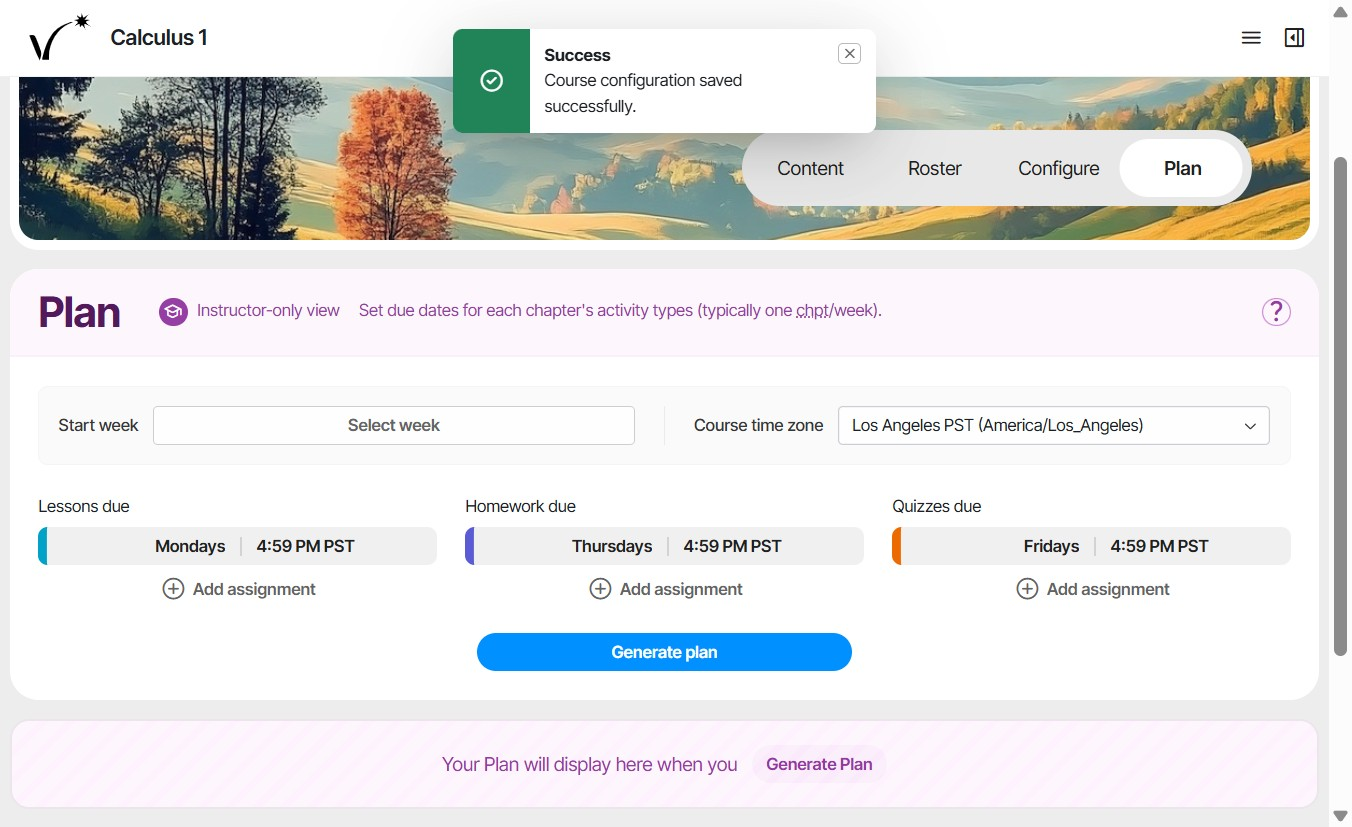
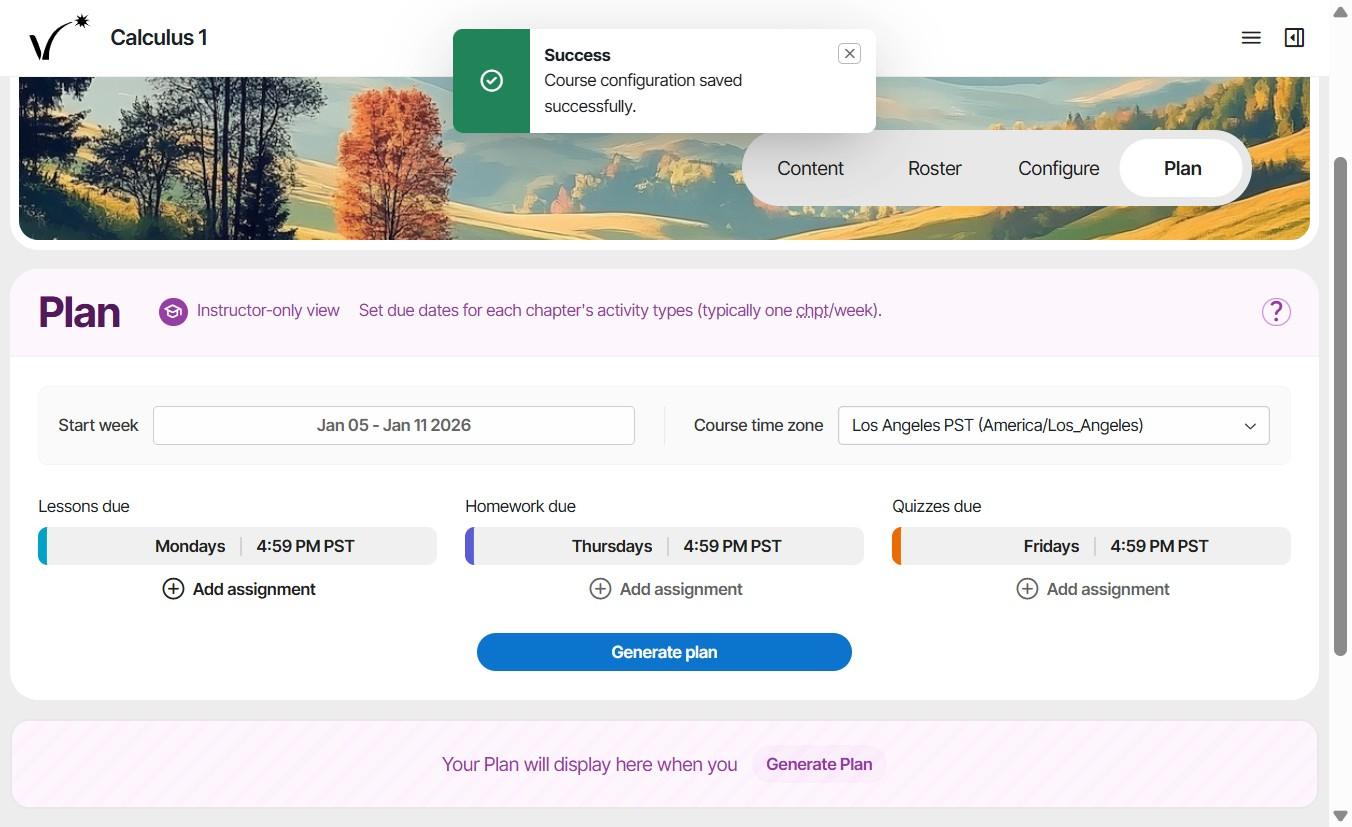
  3. Click "Select week".Plan tab showing the Start week and Course time zone fields, with default Lessons, Homework, and Quizzes due rows and a Generate plan button.
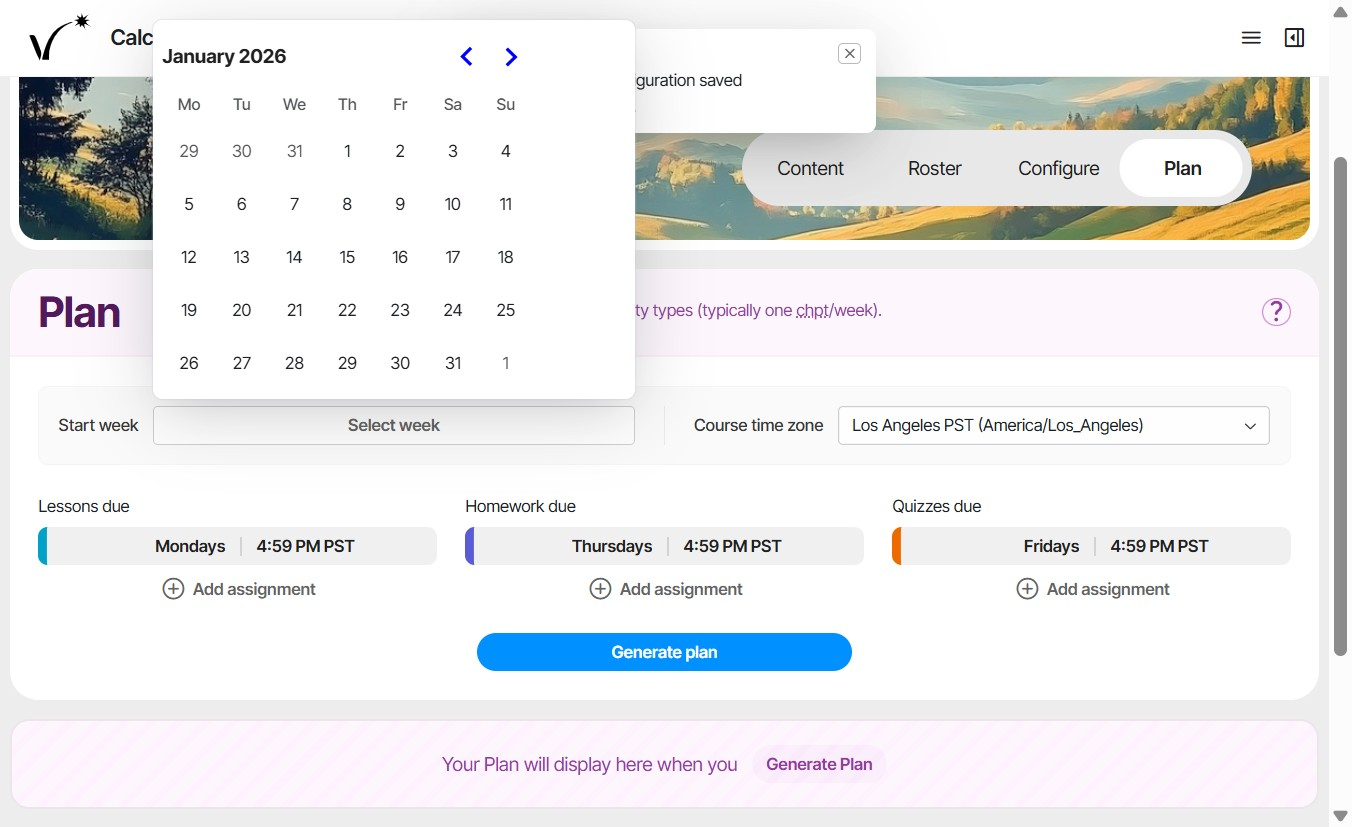
  4. Set the course start date.Calendar date picker open on the Start week field, showing January 2026 for selecting the course start date.
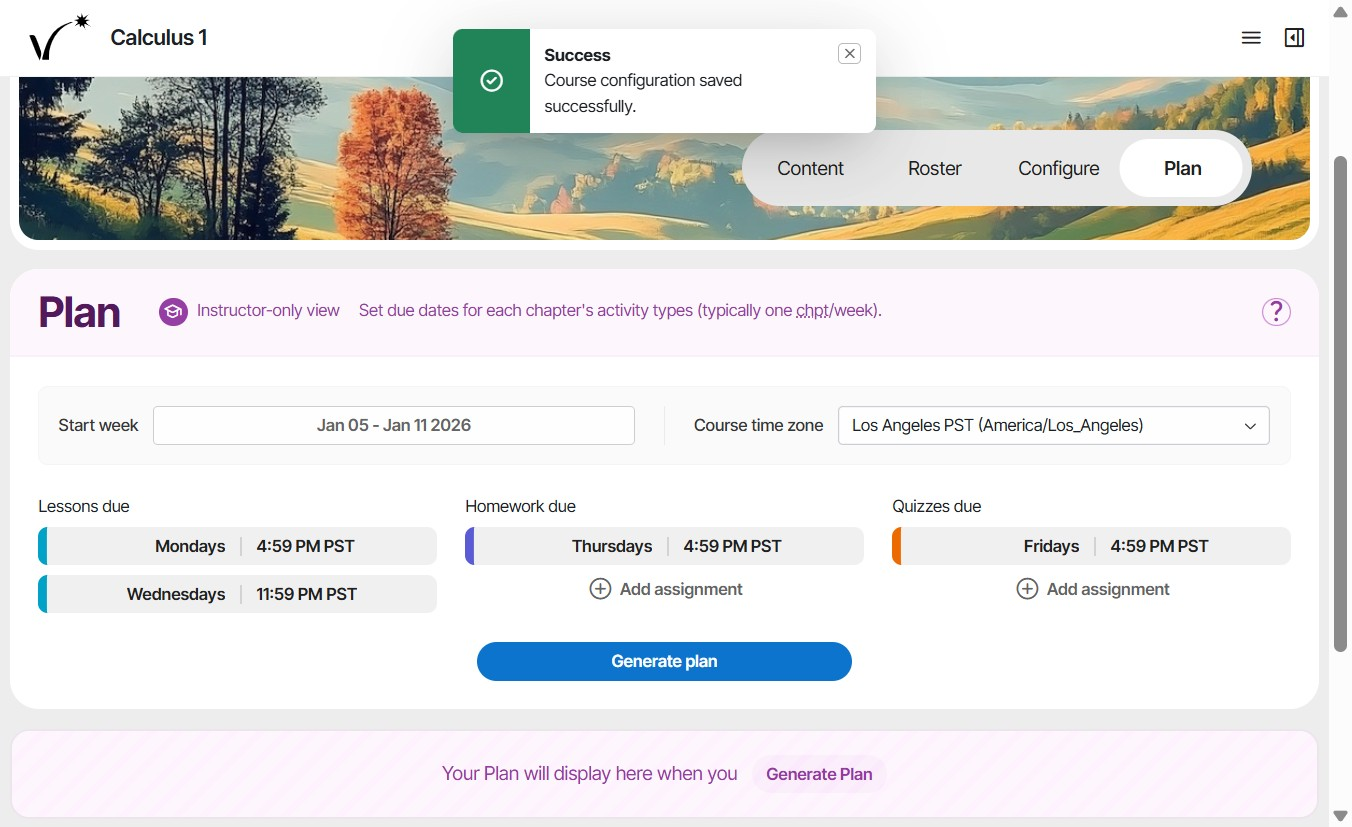
  5. Optionally add up to 5 weekly due dates for lessons, homework, or quizzes by clicking "Add assignment". Plan tab with Start week set to Jan 05 - Jan 11 2026 and default weekly due dates for Lessons, Homework, and Quizzes, each with an Add assignment link.
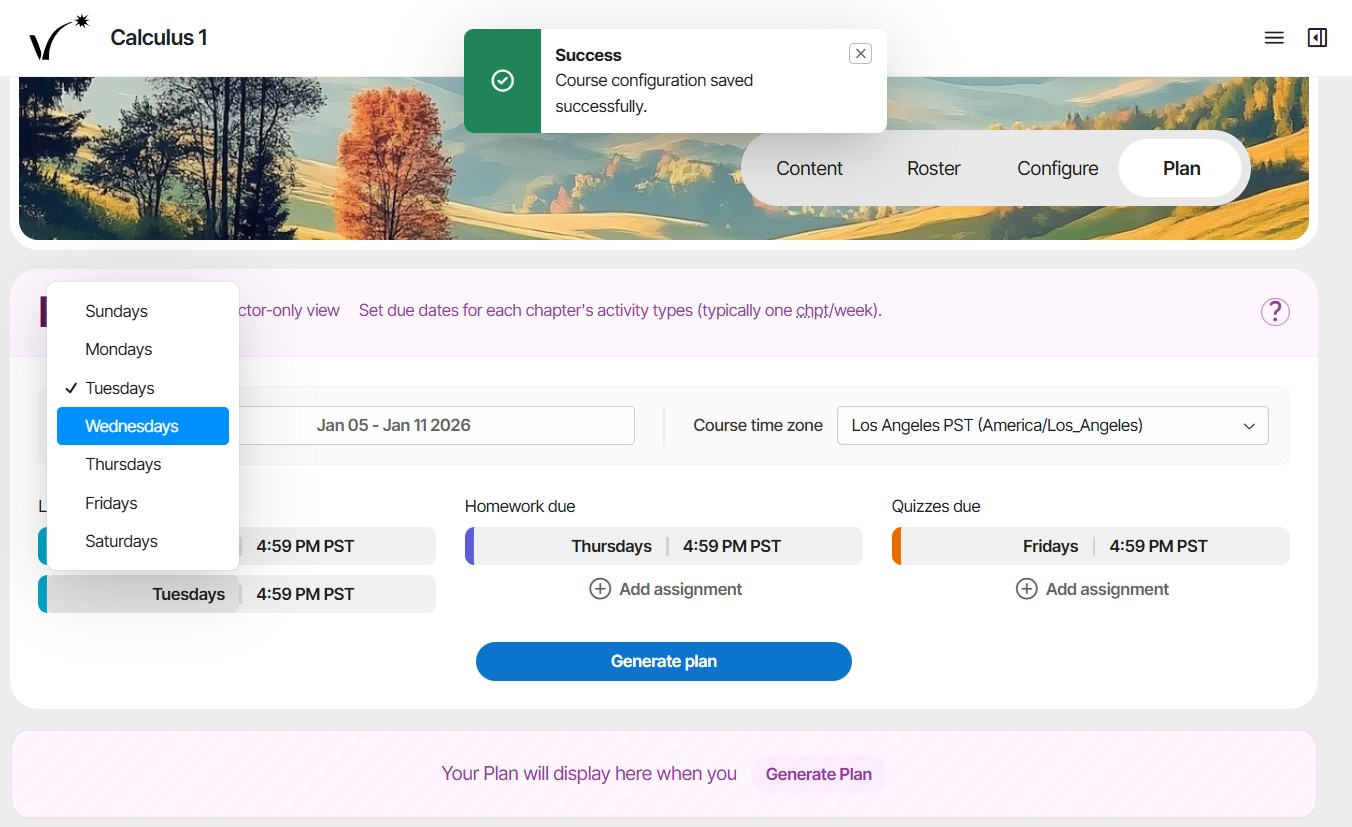
  6. Select weekly due dates and times for lessons, homeworks, and quizzes.Day-of-week dropdown open for a second Lessons due date, letting the instructor pick a weekday such as Wednesdays for an added assignment.
  7. Click Generate plan to generate due dates for weekly assignments.Lessons due column with two due dates set, Mondays 4:59 PM and Wednesdays 11:59 PM, alongside single Homework and Quizzes due dates.
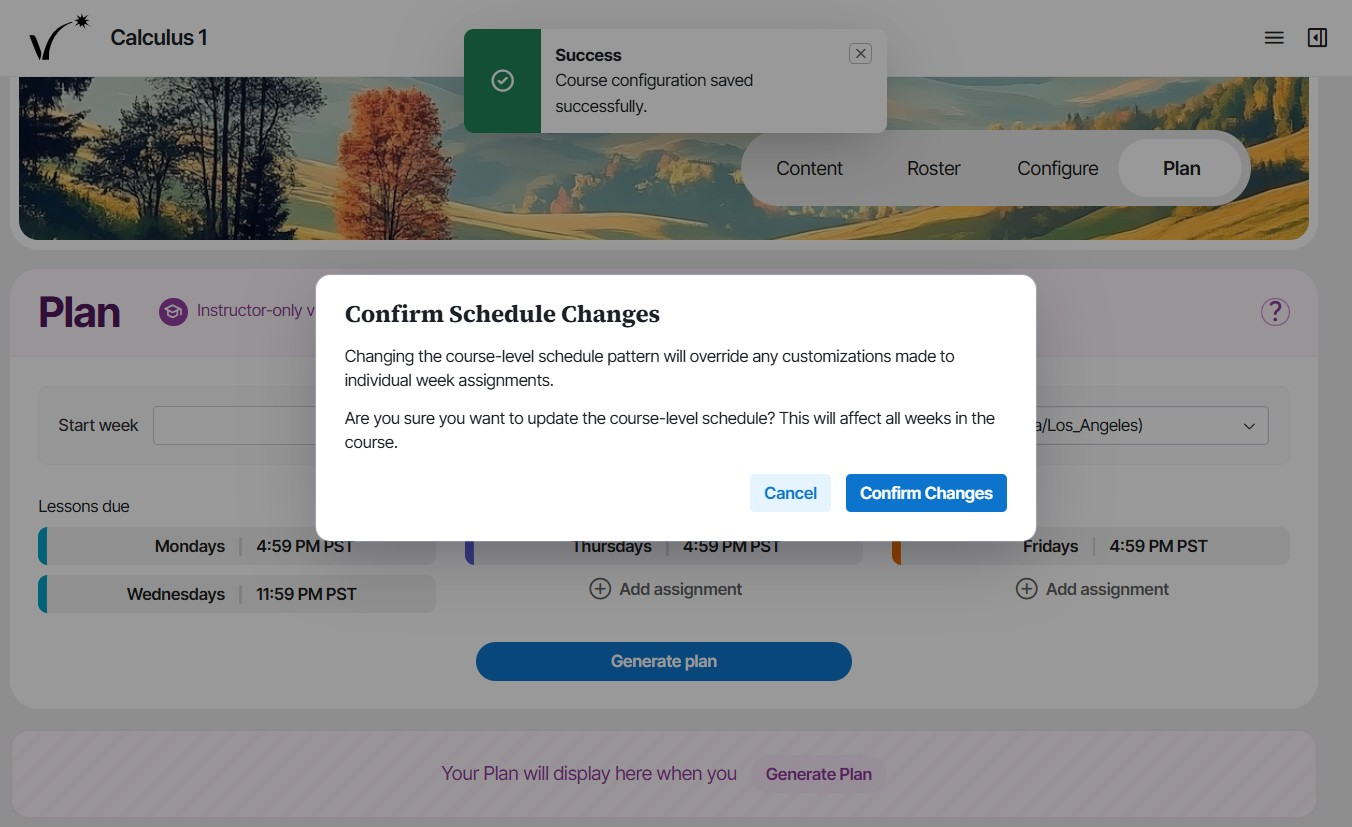
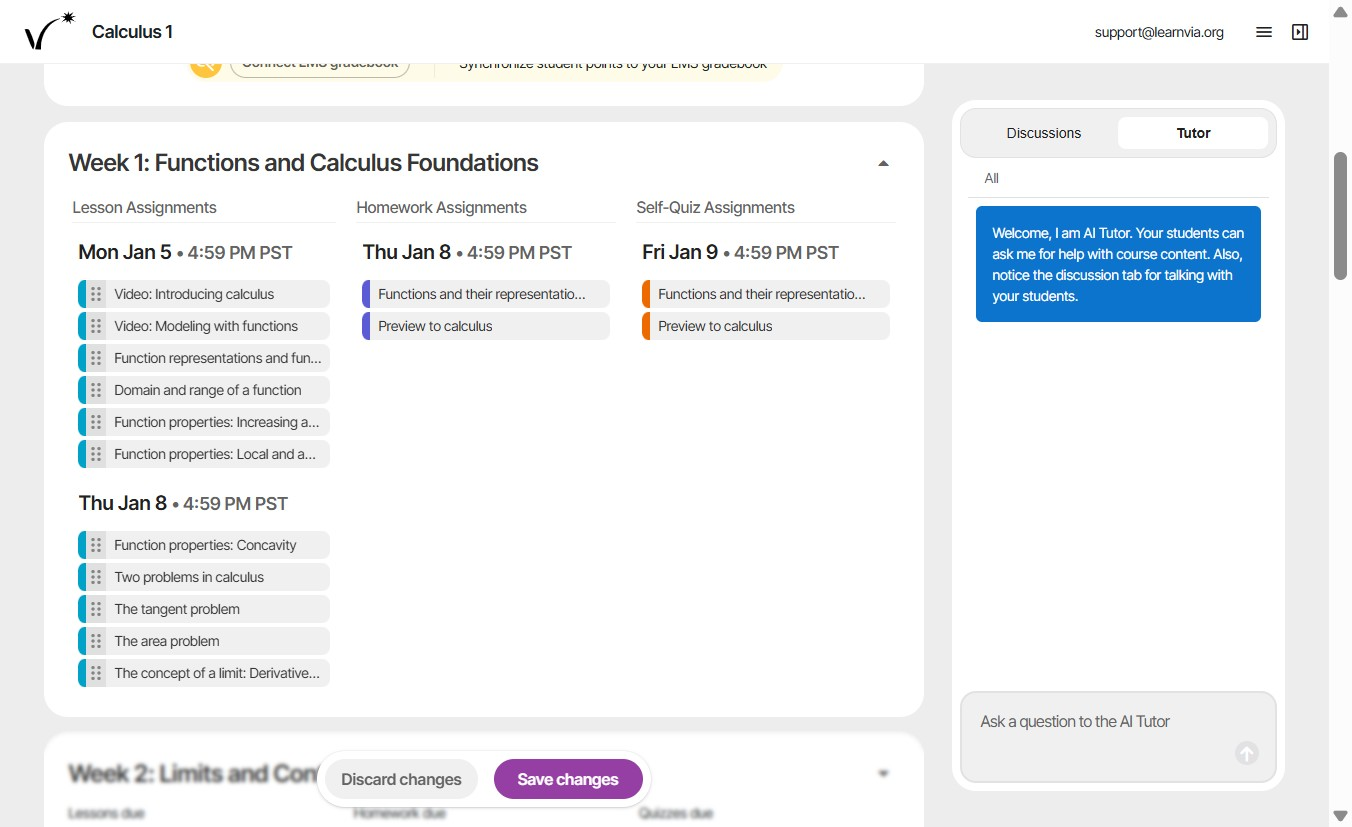
  8. Generating assignments overrides previous customizations. Confirm to continue.Confirm Schedule Changes dialog warning that generating a plan overrides individual week customizations, with Cancel and Confirm Changes buttons.
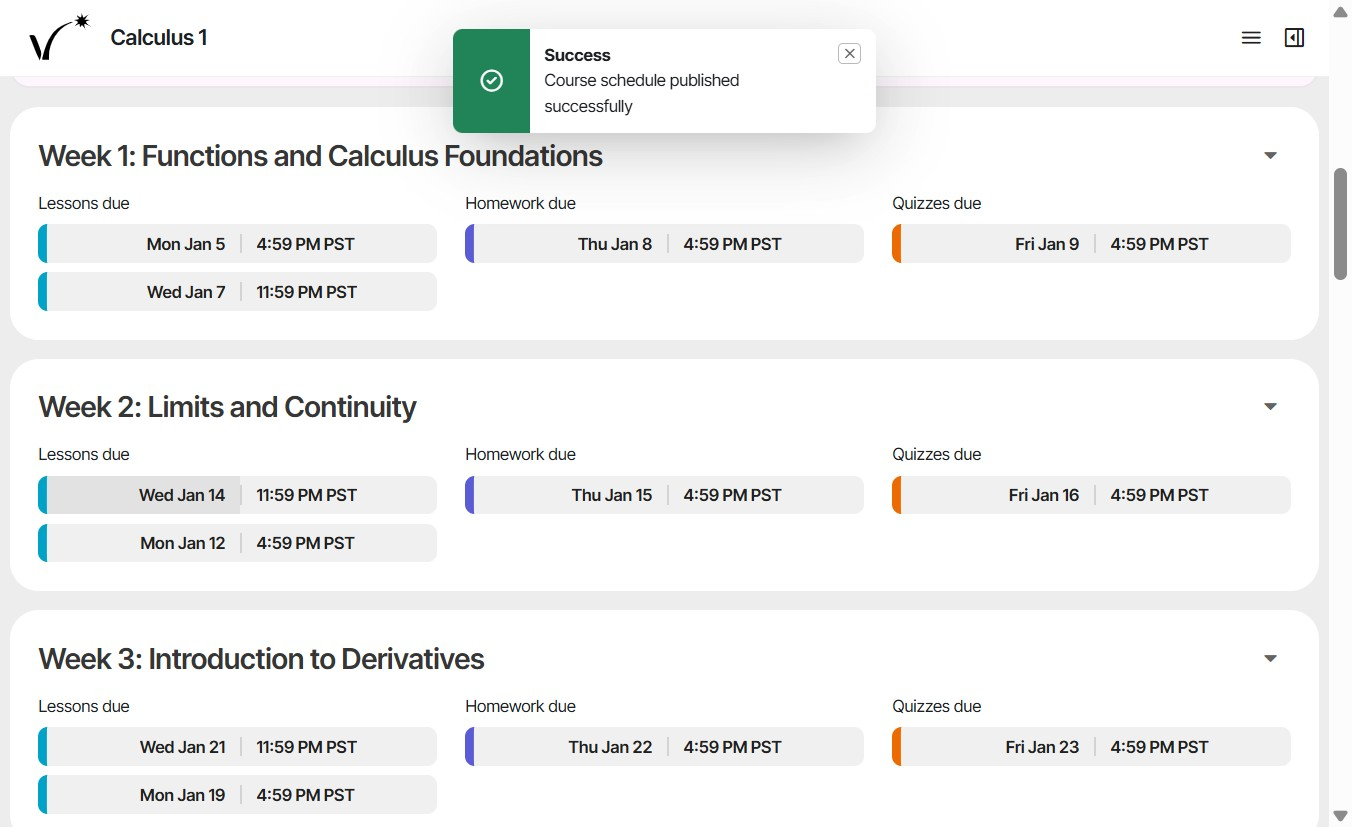
  9. Adjust individual due dates as needed for holidays, extensions, or special cases by clicking on the date. A due date can be adjusted even after it has passed.Generated plan showing per-week Lessons, Homework, and Quizzes due dates for Weeks 1-3, where each date can be clicked to adjust for holidays or extensions.
  10. Use the dropdown to view the assignments for a given week. Click and drag activities to divide them between the two due dates.Week 1 expanded into Lesson, Homework, and Self-Quiz assignment columns; draggable activity tiles can be moved between the two due dates.
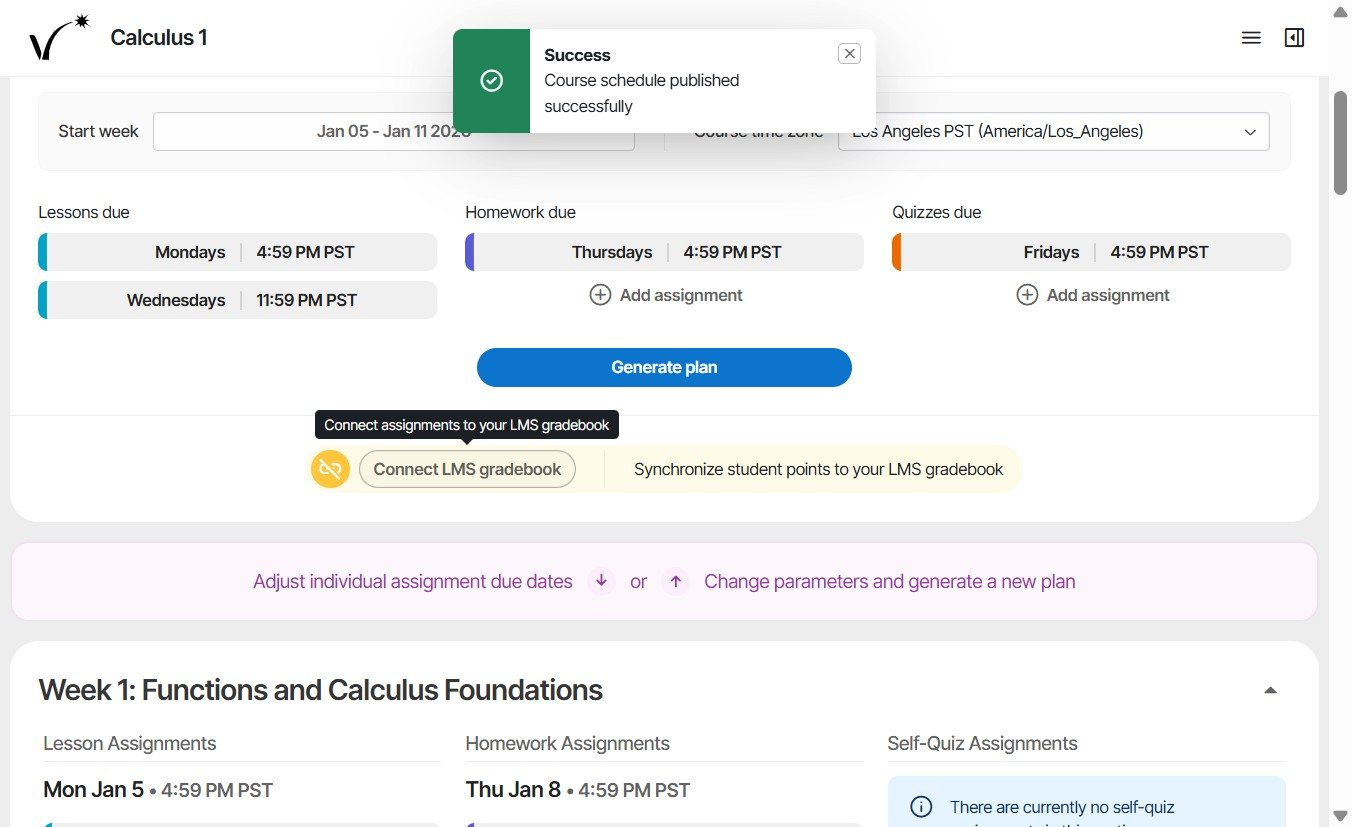
  11. Once the assignments are set up, they can be synced to the LMS gradebook. Click Connect to Gradebook.Connect LMS gradebook button with tooltip "Connect assignments to your LMS gradebook" for syncing student points to the LMS gradebook.

Was this article helpful?

That’s Great!

Thank you for your feedback

Sorry! We couldn't be helpful

Thank you for your feedback

Let us know how can we improve this article!

Select at least one of the reasons
CAPTCHA verification is required.

Feedback sent

We appreciate your effort and will try to fix the article