This guide details how to use your course roster. When students join the class through the LMS, they are automatically added to the roster.
- Click "Roster".
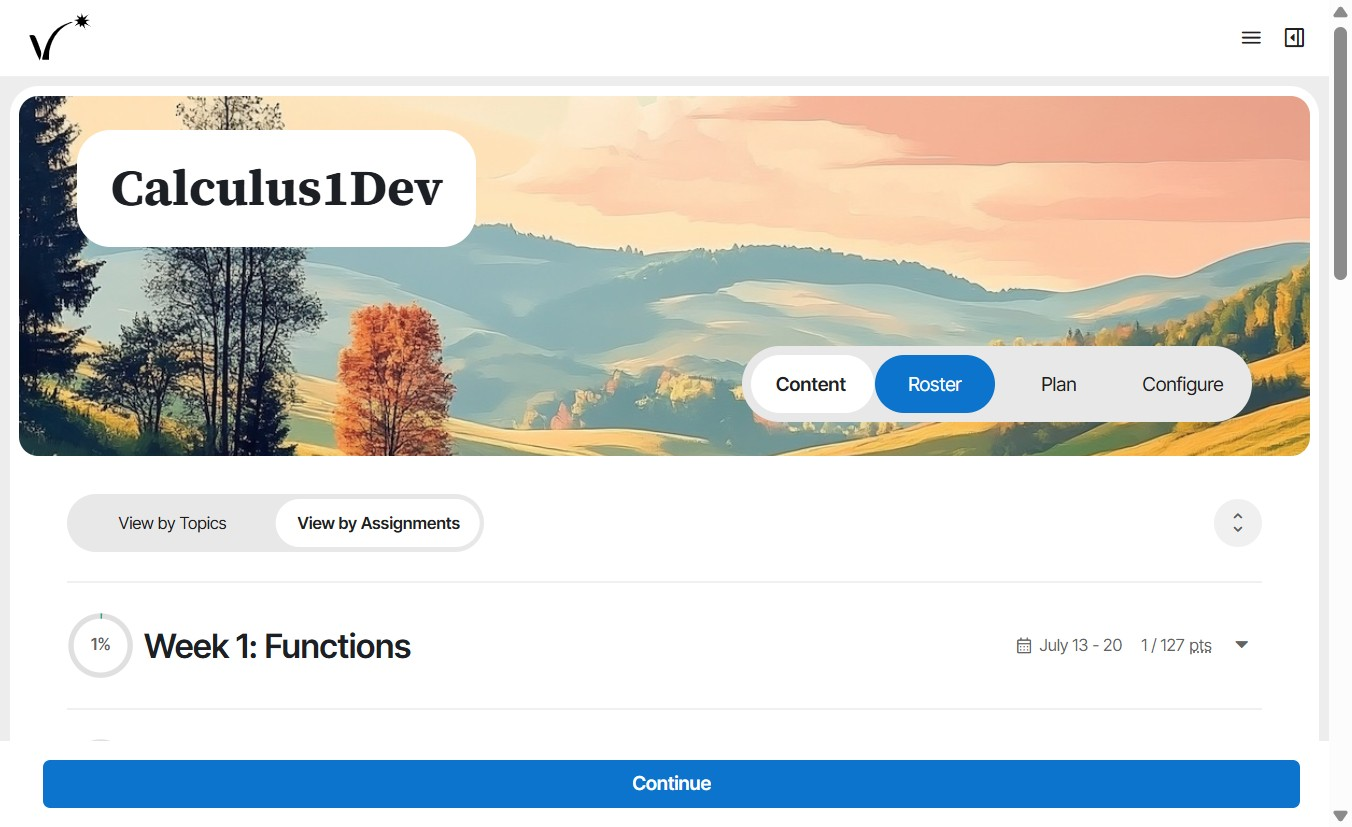
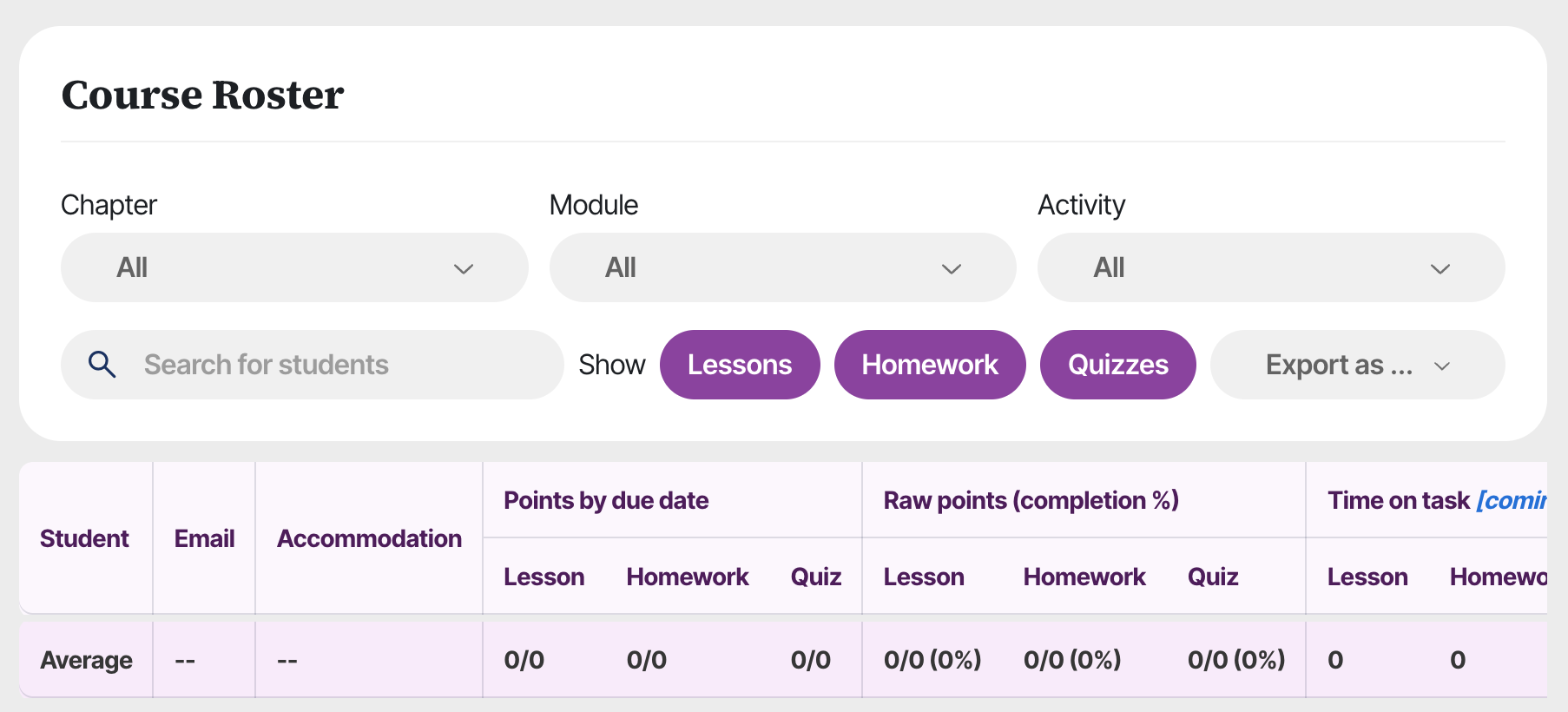
- The Roster tab shows student metrics, including time spent and completion progress (both before and after due date).
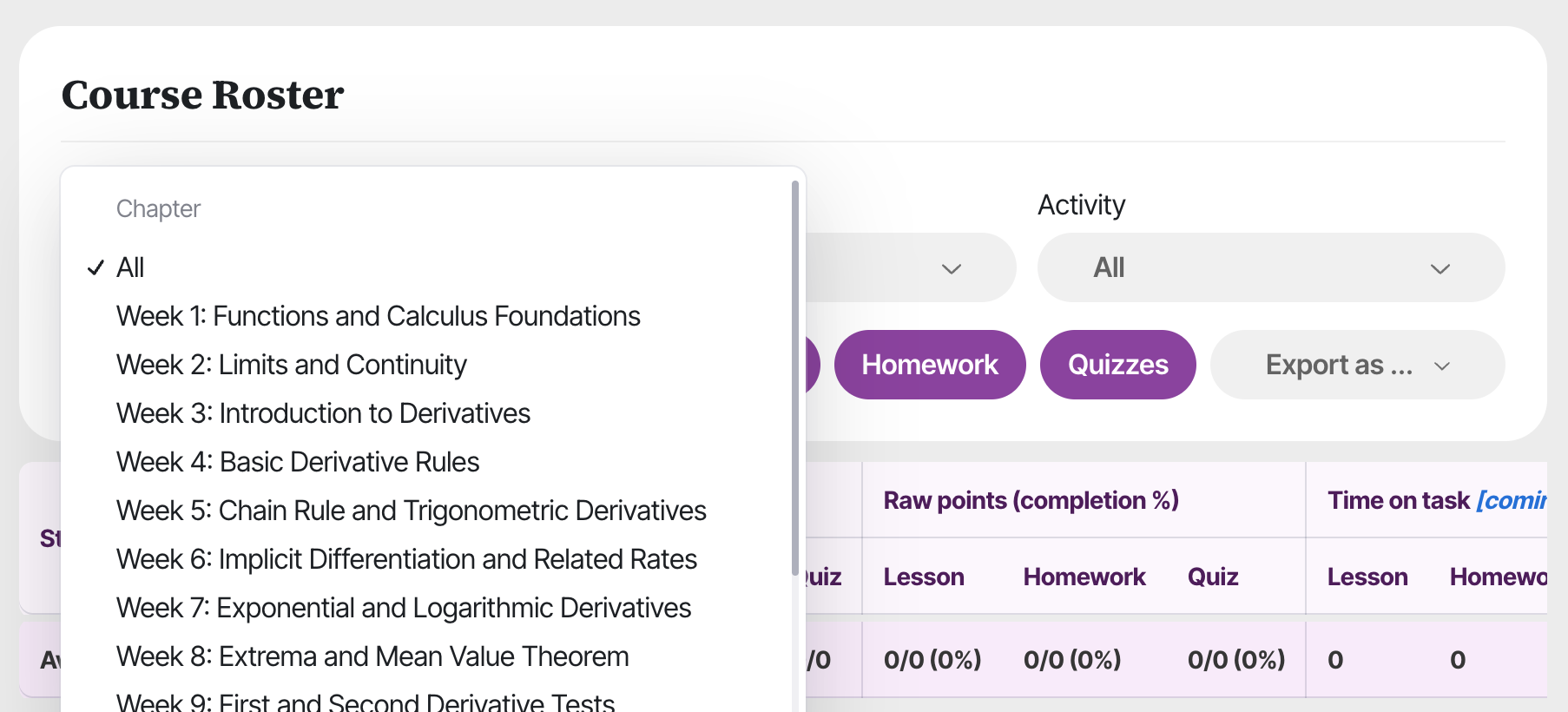
- Select chapter, module, or activity to view specific metrics.
- Search for individual students from the search bar. Select whether to view lesson and/or homework metrics.
- Export student data using the "Export as" button. To export a subset of the data, filter by chapter, module, or activity first.
Was this article helpful?
That’s Great!
Thank you for your feedback
Sorry! We couldn't be helpful
Thank you for your feedback
Feedback sent
We appreciate your effort and will try to fix the article